

项目背景
家里有两台电视,一台是海信老电视,没有ADB功能,无法部署CleanyourTV和Aerial TV,就安装一个极简桌面apk来代替,详见上篇文章(有需要可以找博主要安装包,不一定能成功)
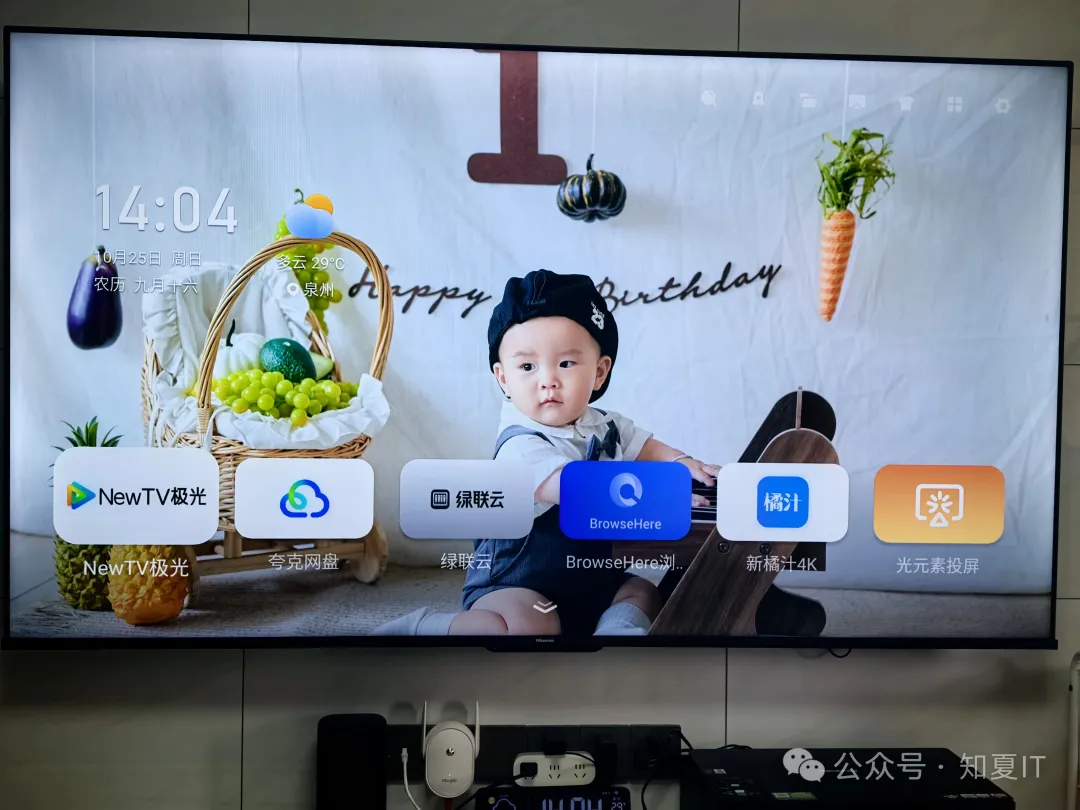
新的雷鸟电视就直接来测试部署Aerial TV吧
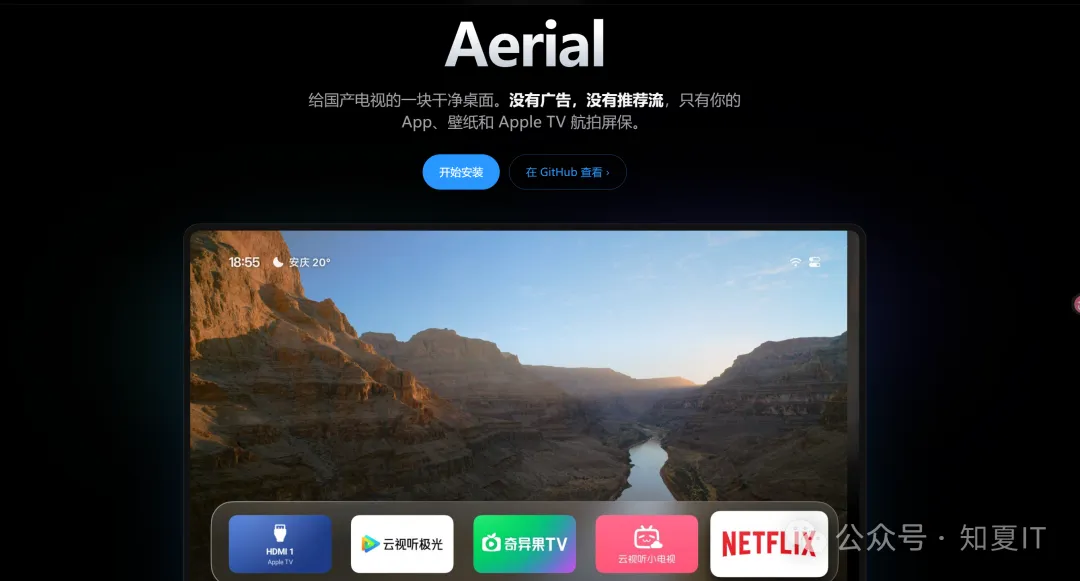
正式部署
参考官方手册(https://aerial.qust.me/[#install](javascript:;))
首先需要记录电视的IP以及开启ADB功能
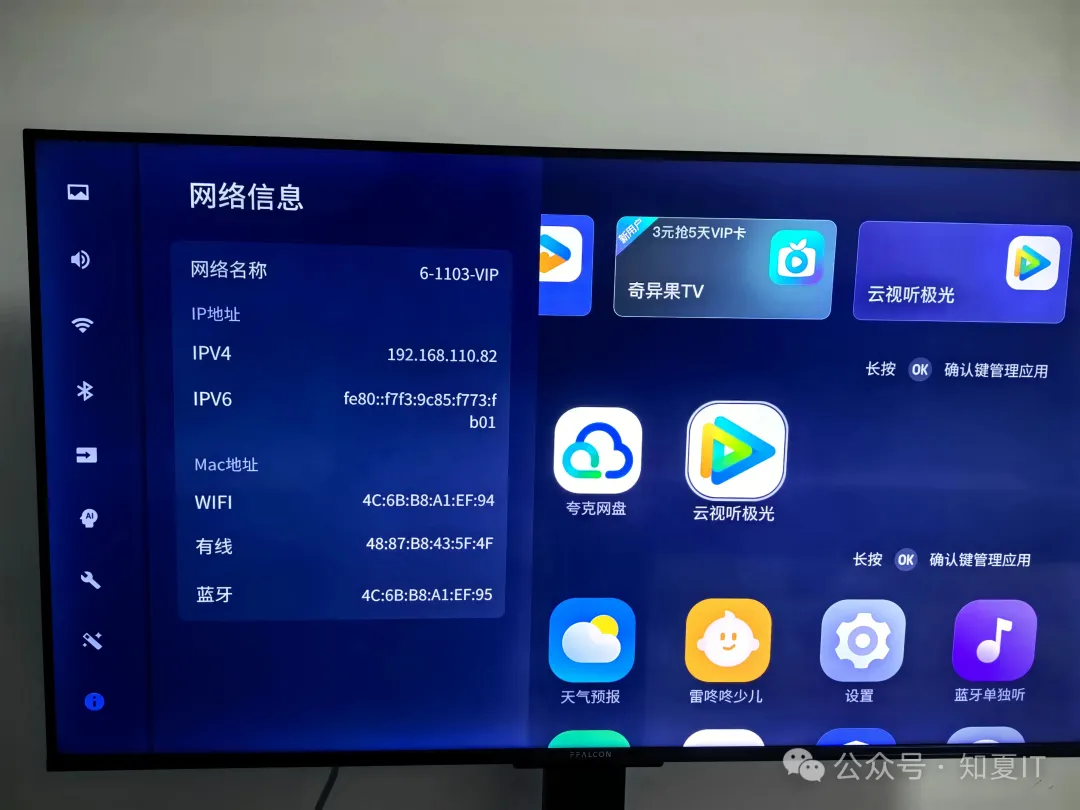
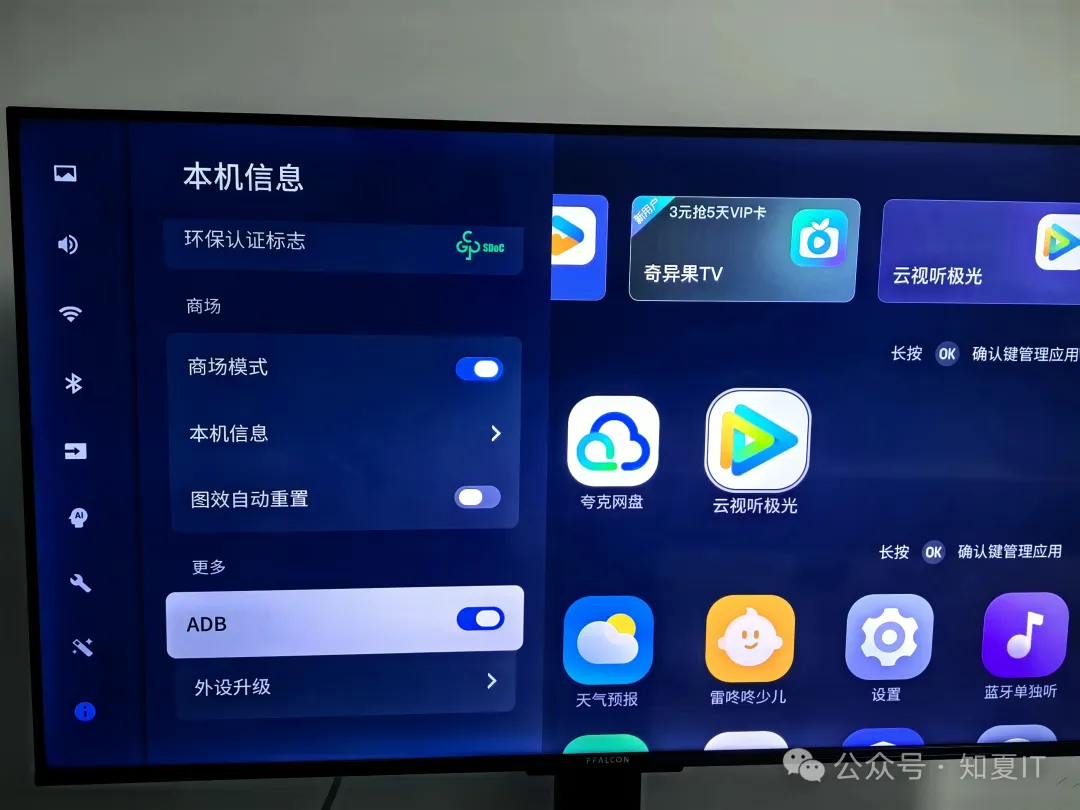
设置 → 关于 → 本机信息,快速按遥控器 上下左右,在底部出现的「更多」里打开 ADB(参考官网手册TCL方式,其他品牌自行对号入座)
部署方式可以通过AI方式
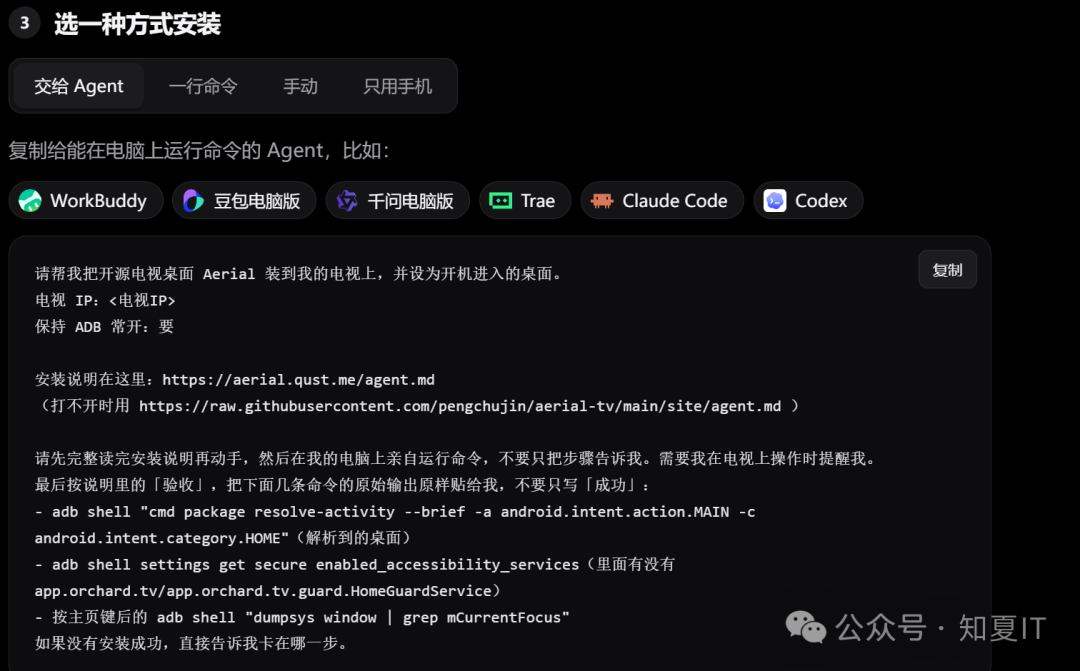
请帮我把开源电视桌面 Aerial 装到我的电视上,并设为开机进入的桌面。
电视 IP:<电视IP>
保持 ADB 常开:要

安装说明在这里:https://aerial.qust.me/agent.md
(打不开时用 https://raw.githubusercontent.com/pengchujin/aerial-tv/main/site/agent.md )

请先完整读完安装说明再动手,然后在我的电脑上亲自运行命令,不要只把步骤告诉我。需要我在电视上操作时提醒我。
最后按说明里的「验收」,把下面几条命令的原始输出原样贴给我,不要只写「成功」:
- adb shell "cmd package resolve-activity --brief -a android.intent.action.MAIN -c android.intent.category.HOME"(解析到的桌面)
- adb shell settings get secure enabled_accessibility_services(里面有没有 app.orchard.tv/app.orchard.tv.guard.HomeGuardService)
- 按主页键后的 adb shell "dumpsys window | grep mCurrentFocus"
如果没有安装成功,直接告诉我卡在哪一步。
也可以通过命令行
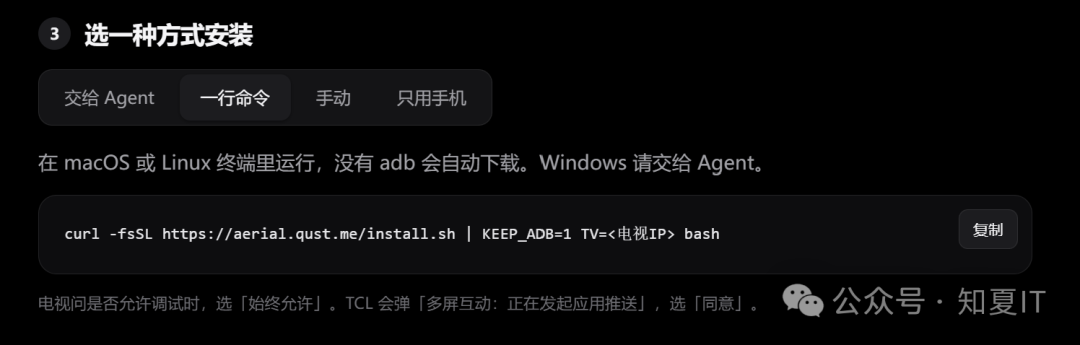
手上有Linux主机,我这边直接用命令行
root@ubuntu01:~# mkdir /TV
root@ubuntu01:~# cd /TV
root@ubuntu01:/TV# curl -fsSL https://aerial.qust.me/install.sh | KEEP_ADB=1 TV=192.168.110.82 bash
adb not found; downloading Android platform-tools into /root/.cache/aerial
######################################################################## 100.0%
* daemon not running; starting now at tcp:5037
* daemon started successfully
The TV is asking "Allow USB debugging?". Choose Allow (and Always allow) on the TV, then run again.
这里会弹出授权,选择允许
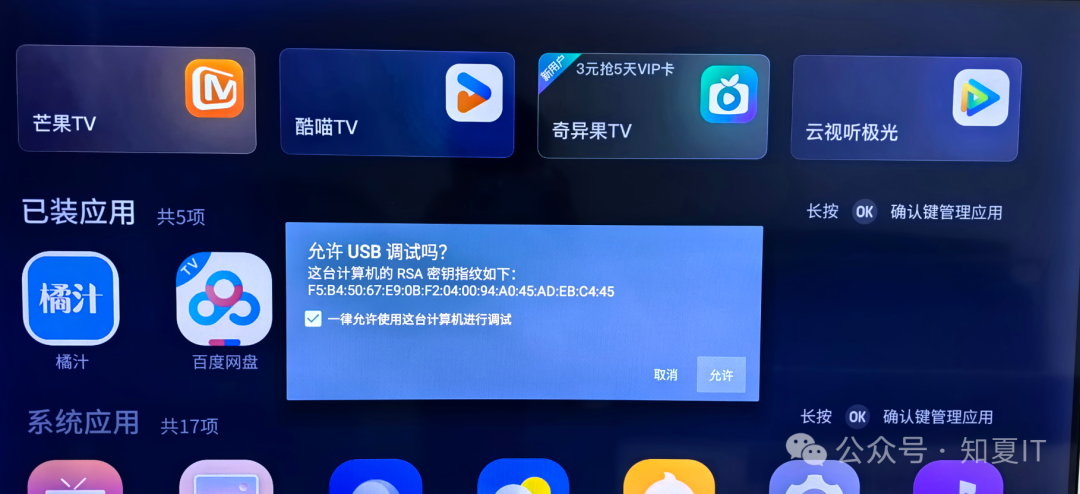
继续执行
root@ubuntu01:/TV# curl -fsSL https://aerial.qust.me/install.sh | KEEP_ADB=1 TV=192.168.110.82 bash
Downloading https://aerial.qust.me/download/aerial-standard.apk
######################################################################## 100.0%
Installing /tmp/aerial-standard.apk
Performing Streamed Install
adb: failed to install /tmp/aerial-standard.apk: Failure [INSTALL_FAILED_VERIFICATION_FAILURE]
Downloading https://aerial.qust.me/download/aerial-guard.apk
######################################################################## 100.0%

/tmp/aerial-guard.apk: 1 file pushed, 0 skipped. 256.4 MB/s (2908276 bytes in 0.011s)
This TV only installs apps from the TV itself. Aerial.apk is now in Download on the TV.
Open it with a file manager or an app store's local install on the TV, and confirm.
Waiting for the install........................................................................................................................
Aerial was not installed; nothing else was changed.
root@ubuntu01:/TV#
可以看到,安装失败了,不过安装包成功下载并且上传到电视上的 /sdcard/Download/下,命令行连接
root@ubuntu01:/TV# adb connect 192.168.110.82
already connected to 192.168.110.82:5555
root@ubuntu01:/TV# adb shell pm disable-user --user 0 com.android.packageinstaller
Package com.android.packageinstaller new state: disabled-user
查看安装包位置,确实成功下载了
root@ubuntu01:/TV# adb shell ls /sdcard/Download/
Aerial.apk
cae_ini_param.txt
手动执行安装,可以看到安装成功了
root@ubuntu01:/TV# adb shell cp /sdcard/Download/Aerial.apk /data/local/tmp/
root@ubuntu01:/TV# adb shell pm install /data/local/tmp/Aerial.apk
Success
root@ubuntu01:/TV#
回到电视主页,打开Aerial应用
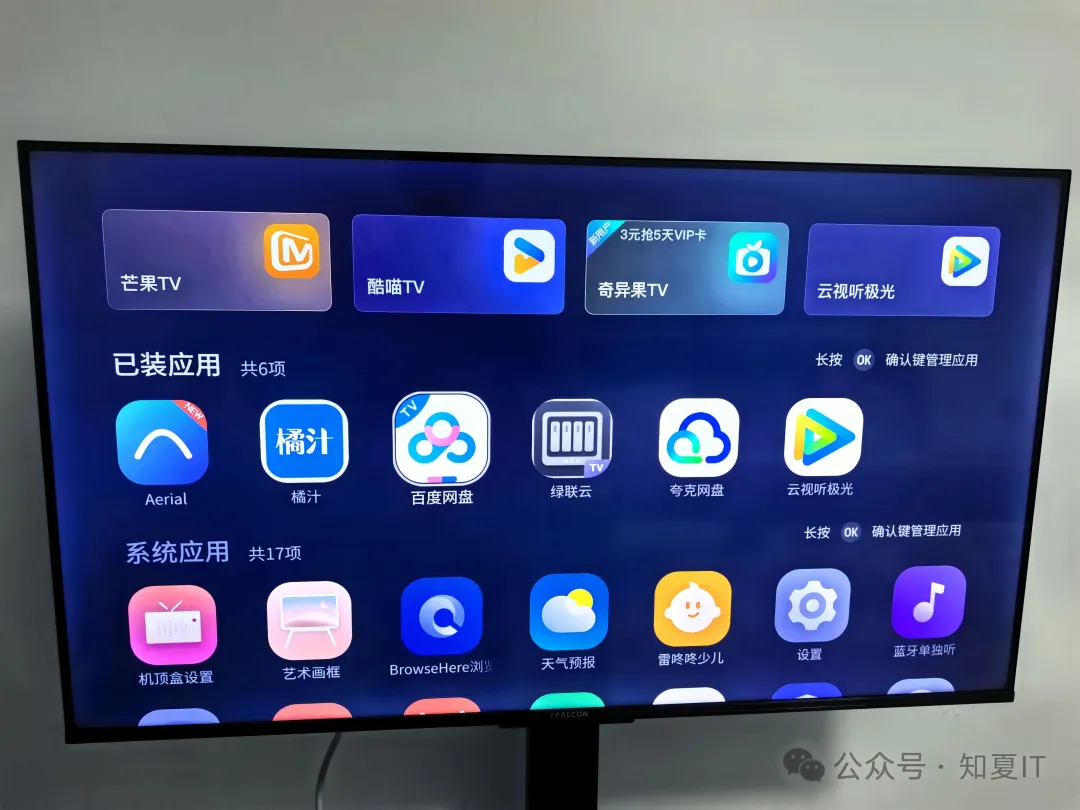
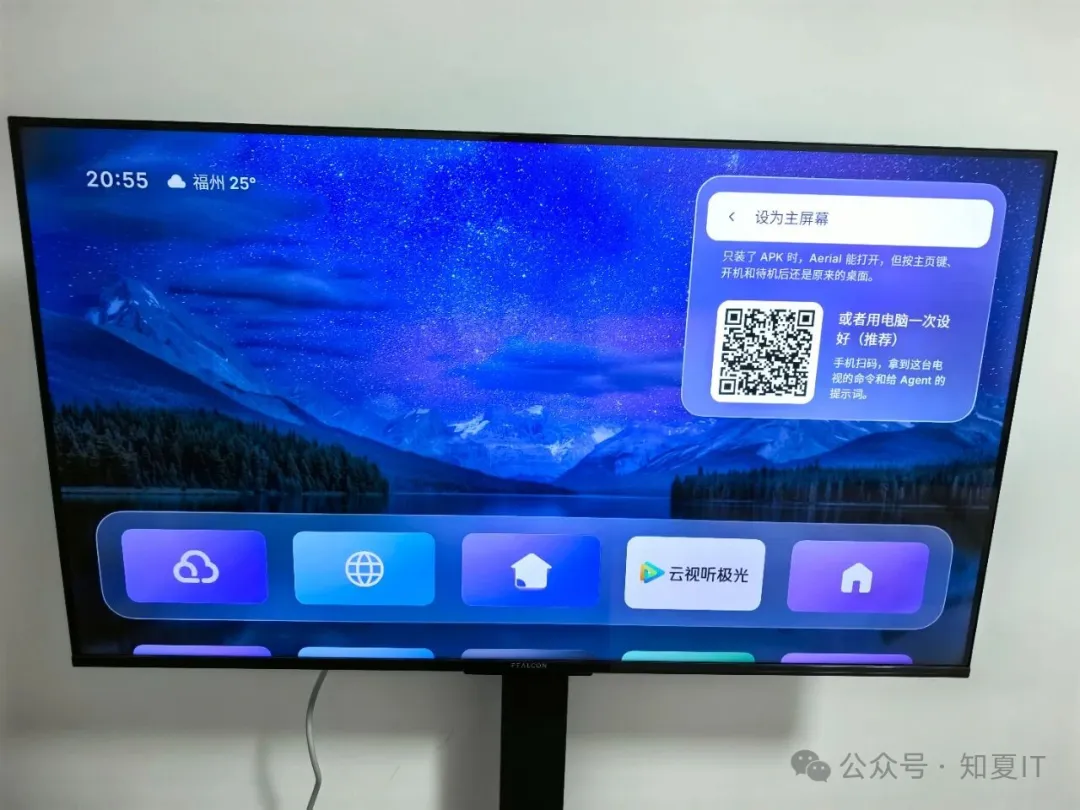
看到提示,直接扫码,看到只安装APK时,还需要继续如下操作,可以AI方式,也可以命令行执行
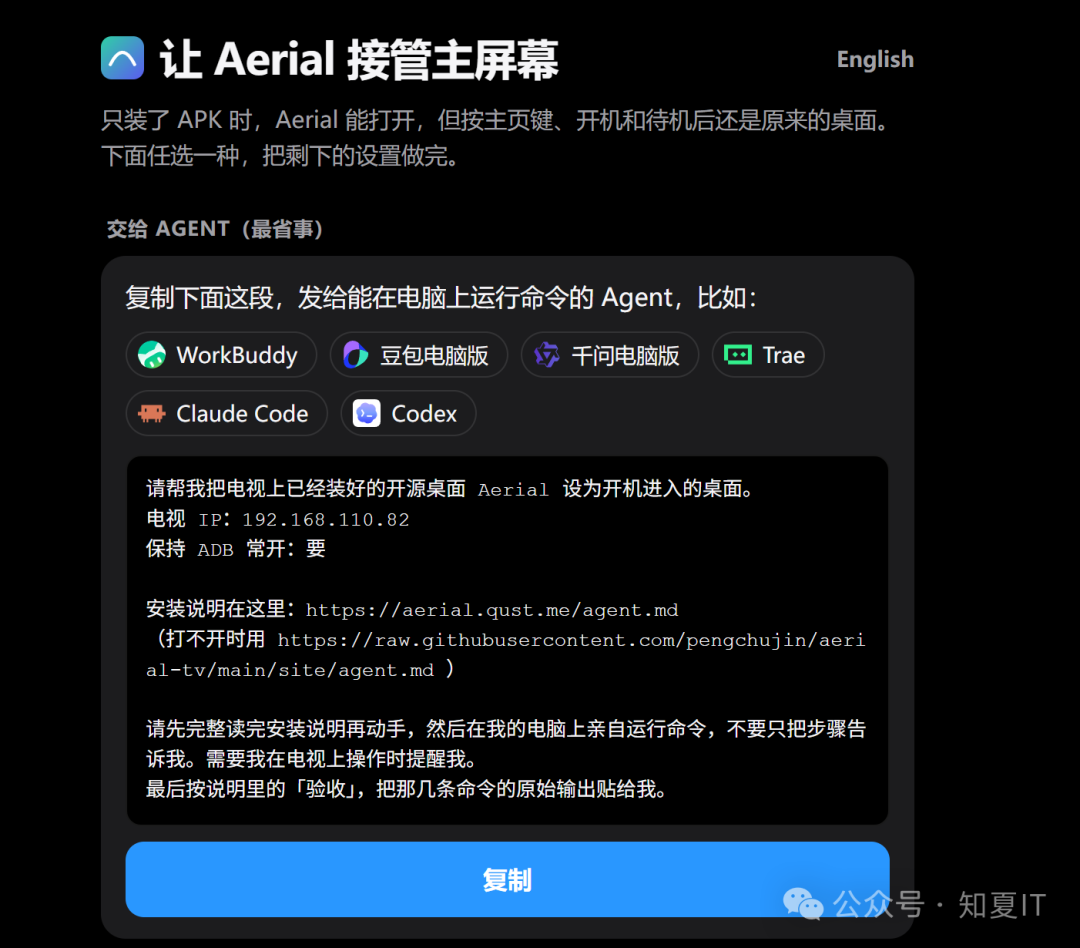
请帮我把电视上已经装好的开源桌面 Aerial 设为开机进入的桌面。
电视 IP:192.168.110.82
保持 ADB 常开:要

安装说明在这里:https://aerial.qust.me/agent.md
(打不开时用 https://raw.githubusercontent.com/pengchujin/aerial-tv/main/site/agent.md )

请先完整读完安装说明再动手,然后在我的电脑上亲自运行命令,不要只把步骤告诉我。需要我在电视上操作时提醒我。
最后按说明里的「验收」,把那几条命令的原始输出贴给我。
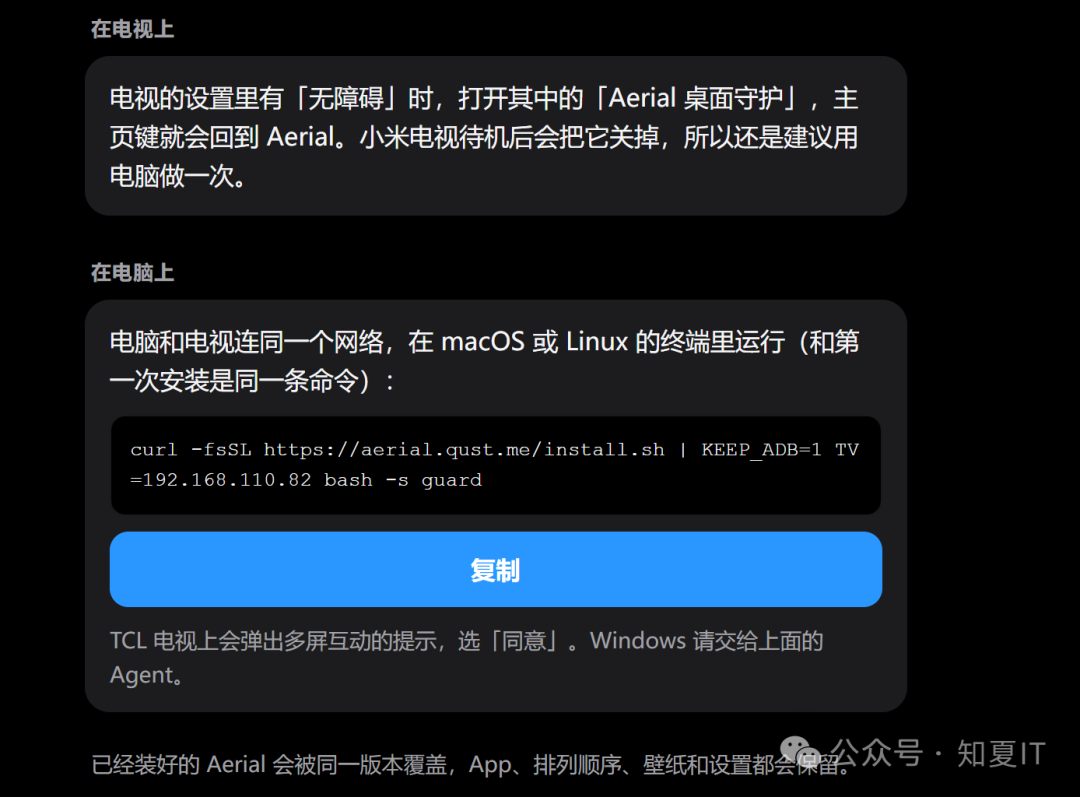
我选择命令行执行
root@ubuntu01:/TV# curl -fsSL https://aerial.qust.me/install.sh | KEEP_ADB=1 TV=192.168.110.82 bash -s guard
Downloading https://aerial.qust.me/download/aerial-guard.apk
######################################################################## 100.0%
Installing /tmp/aerial-guard.apk
Aerial's screensaver is now the TV's screensaver.
Aerial will switch ADB debugging back on whenever the TV turns it off.
Home Guard is running. Press Home on the remote.
到这里就成功了,最后看下成果吧
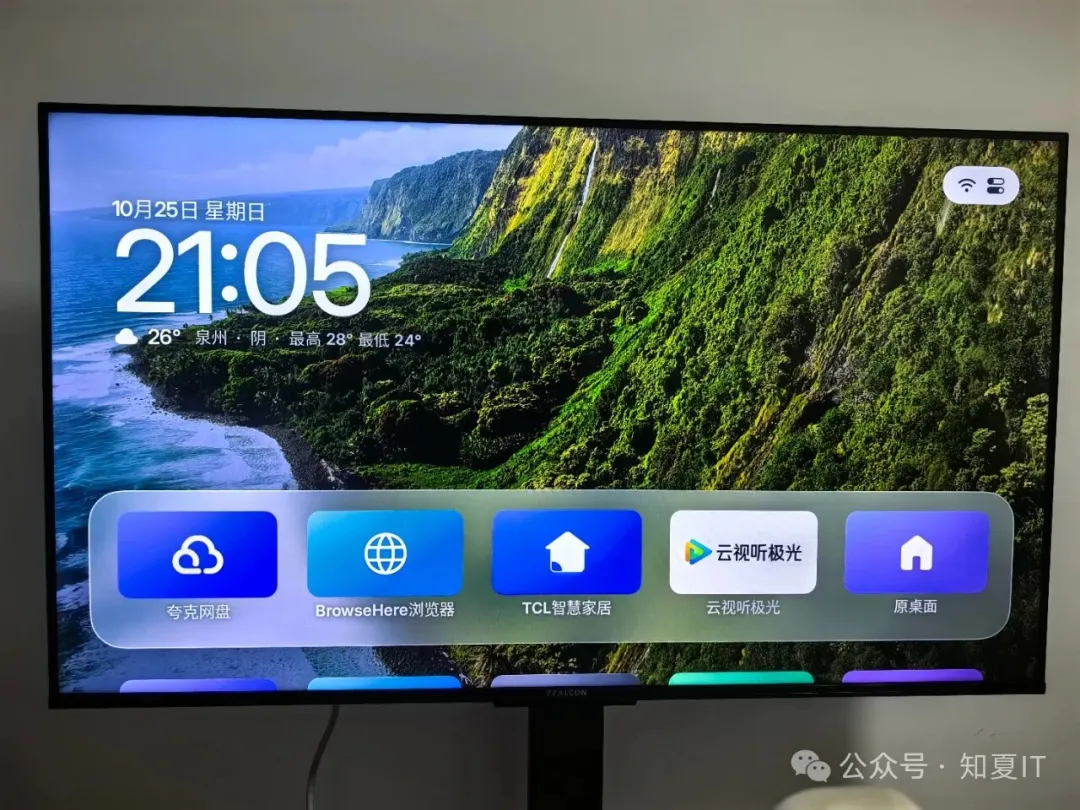
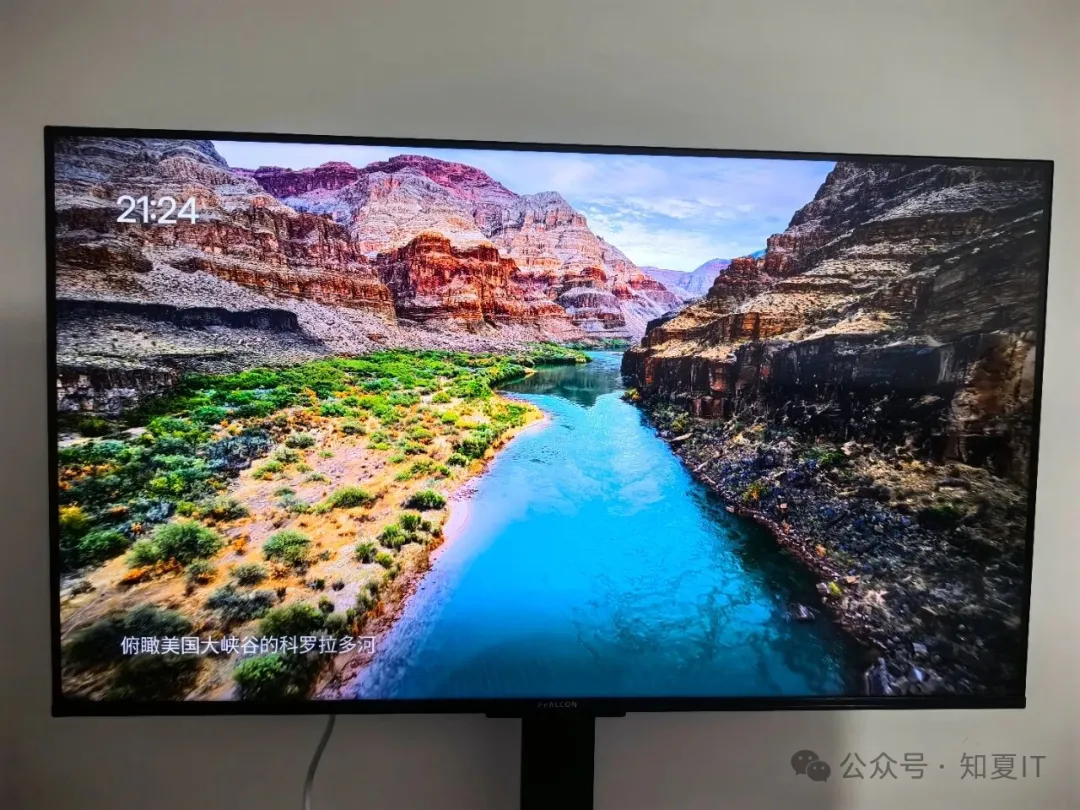
本文展示Linux命令行方式,至于没有环境的可以选择AI方式,大家可以自行去试一下。
附Aerial官网地址:https://aerial.qust.me/[#top](javascript:;)



评论区