

项目背景
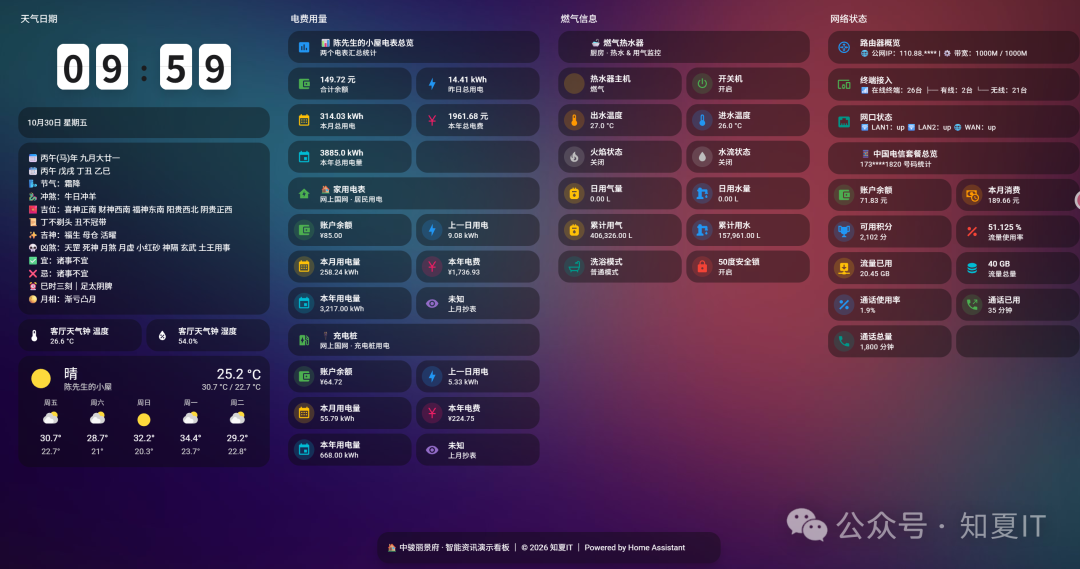
家里有智能家居的对Home Assistant都不会陌生,现在网上的教程都是教大家怎么去实现智能家居自动化。不过对于我而言,觉得用处不大。家里的智能设备基本纳入小爱音箱,一句小爱同学就可以去控制,实在没必要再去折腾Home Assistant。不过利用Home Assistant的仪表盘及HACS里面的集成插件,把日常需要高频调阅的国家电网、手机套餐用量之类做成一个免登录看板,那就很实用了,先看下成品
部署HA
本次演示直接用绿联NAS应用商店一键部署,设定好安装路径和配置路径,直接启动就部署好了
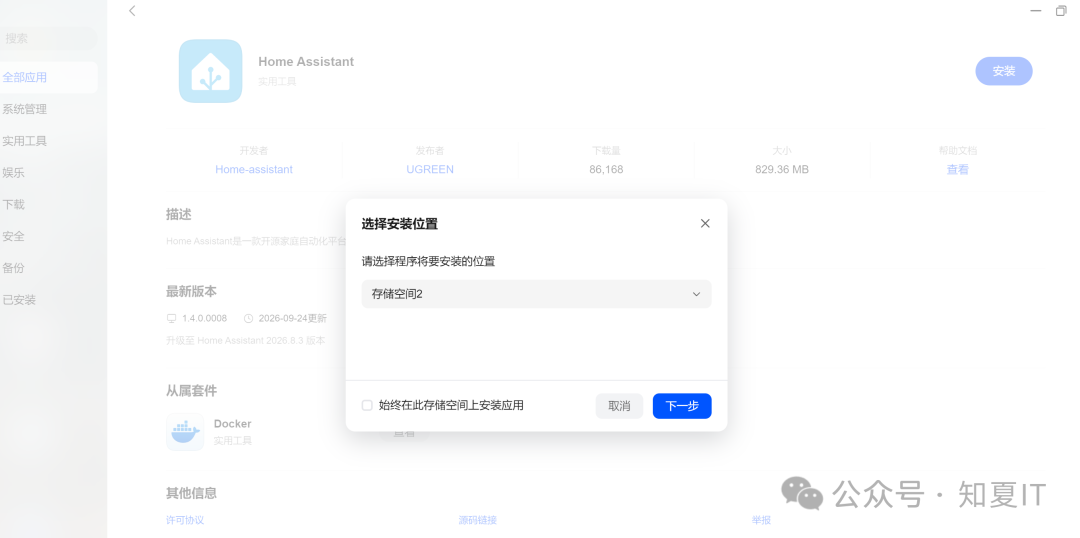
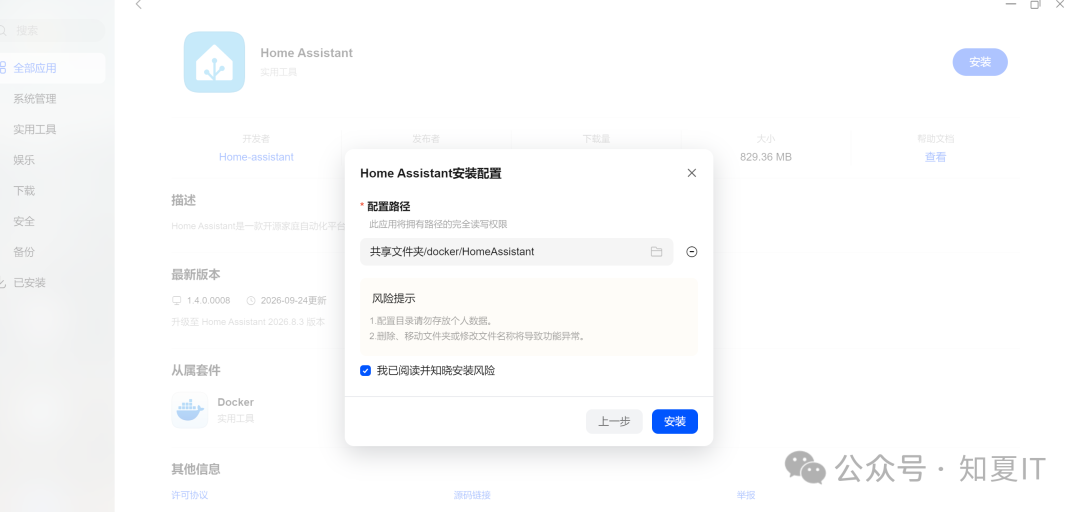
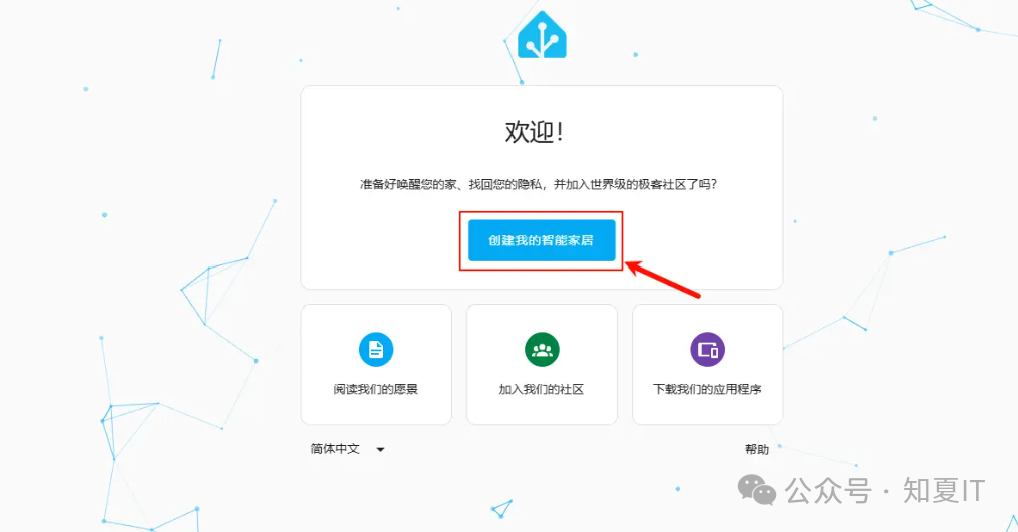
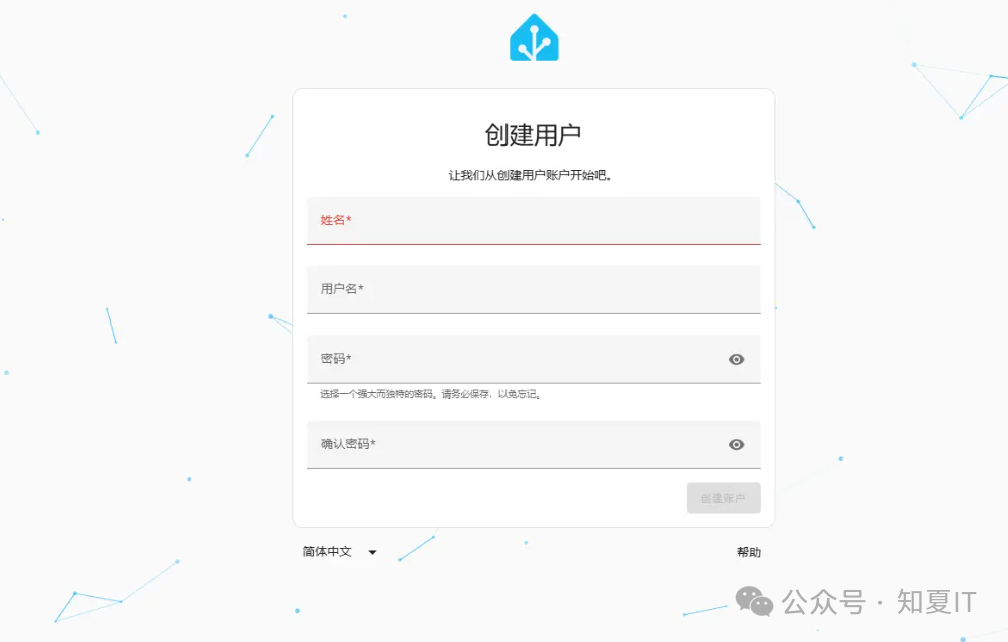
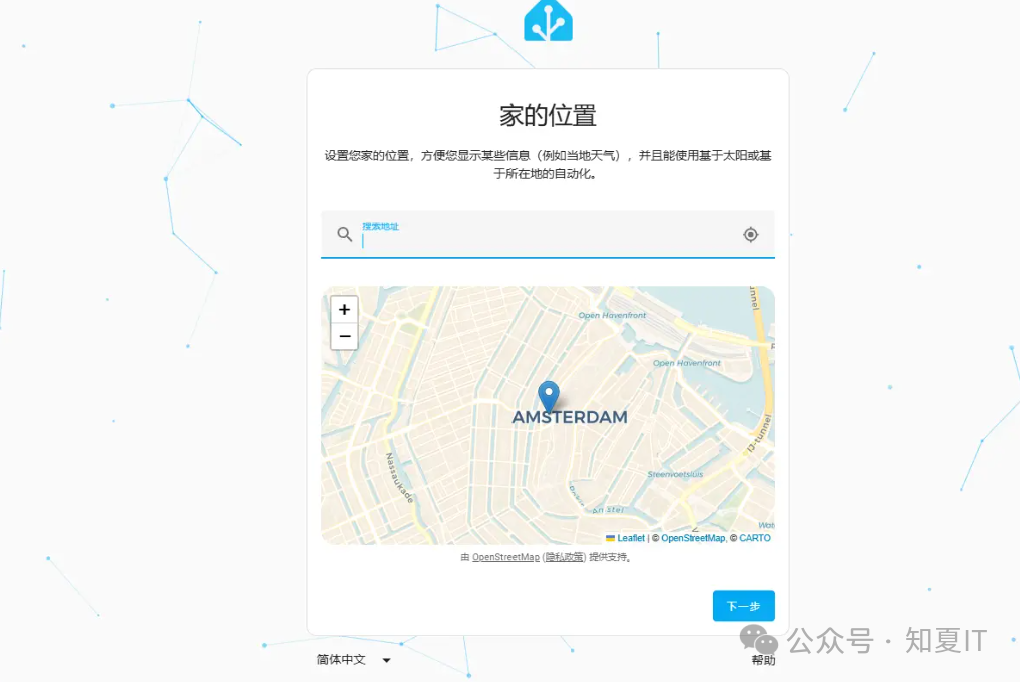
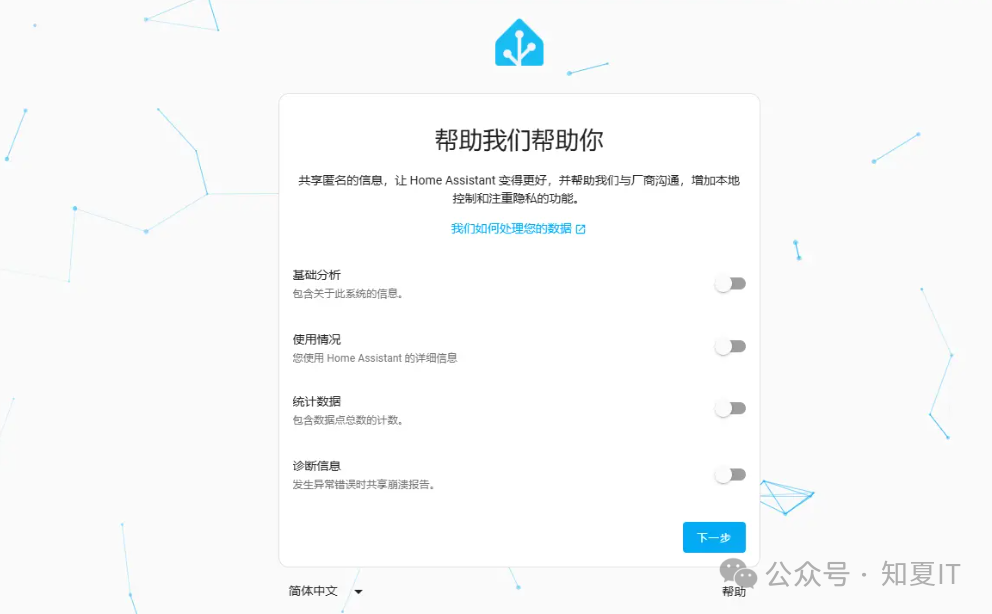
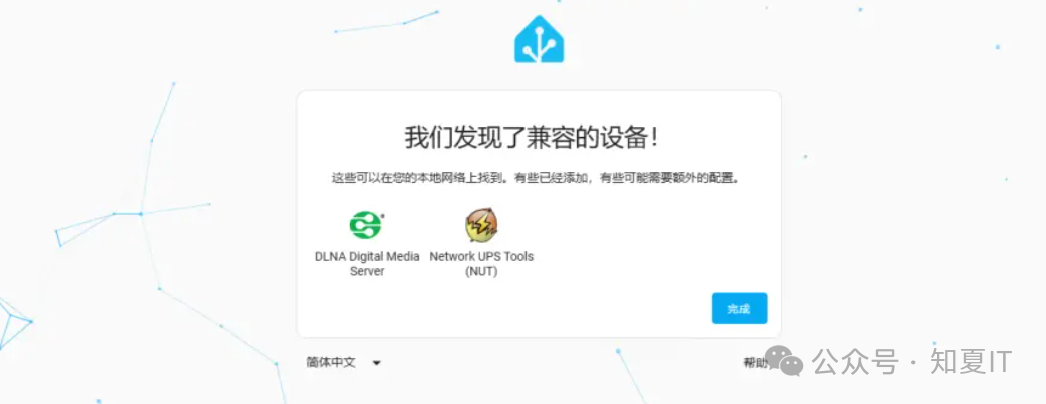
浏览器输入http://ip:8123就可以打开Home Assistant配置页面,接下来就是一系列的初始化
安装HACS
安装好HA,接下来就是安装应用商店HACS,手动下载
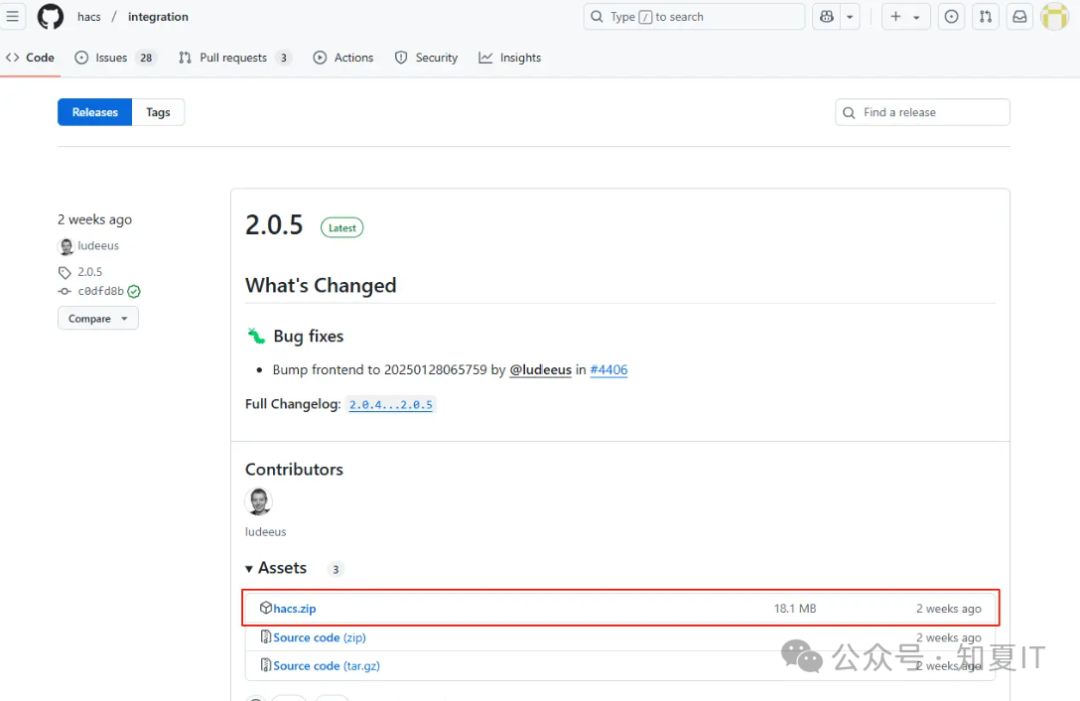
解压放到xxxxx/custom_components/hacs路径下并解压
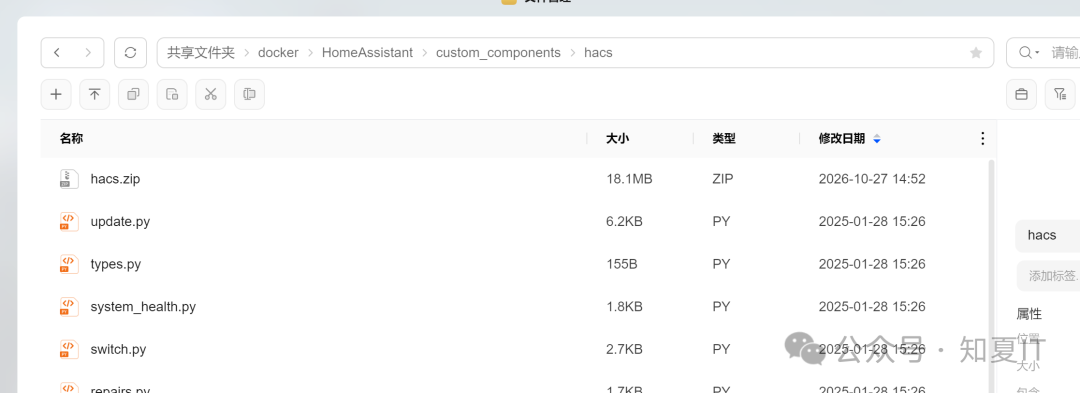
解压完成后重启一下Home Assistant,接下来把HACS拉进来
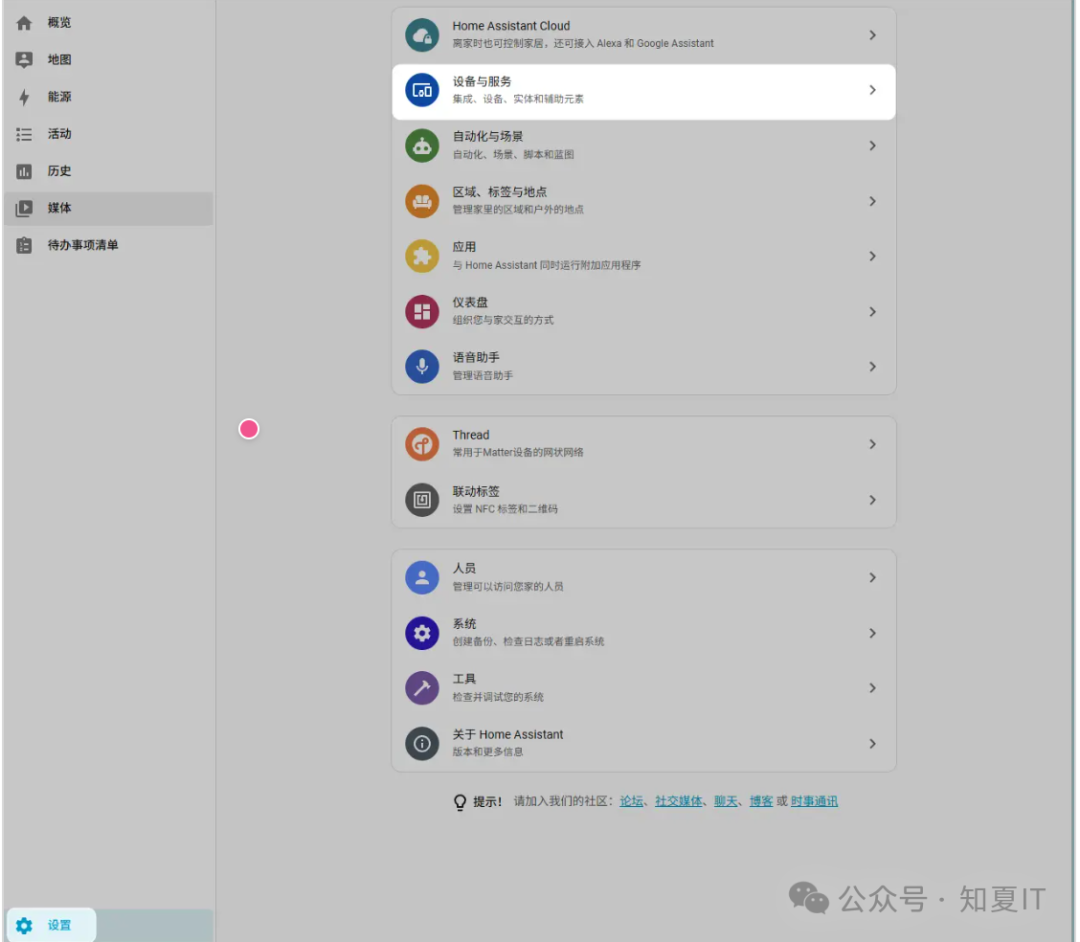
设置->设备与服务
添加集成
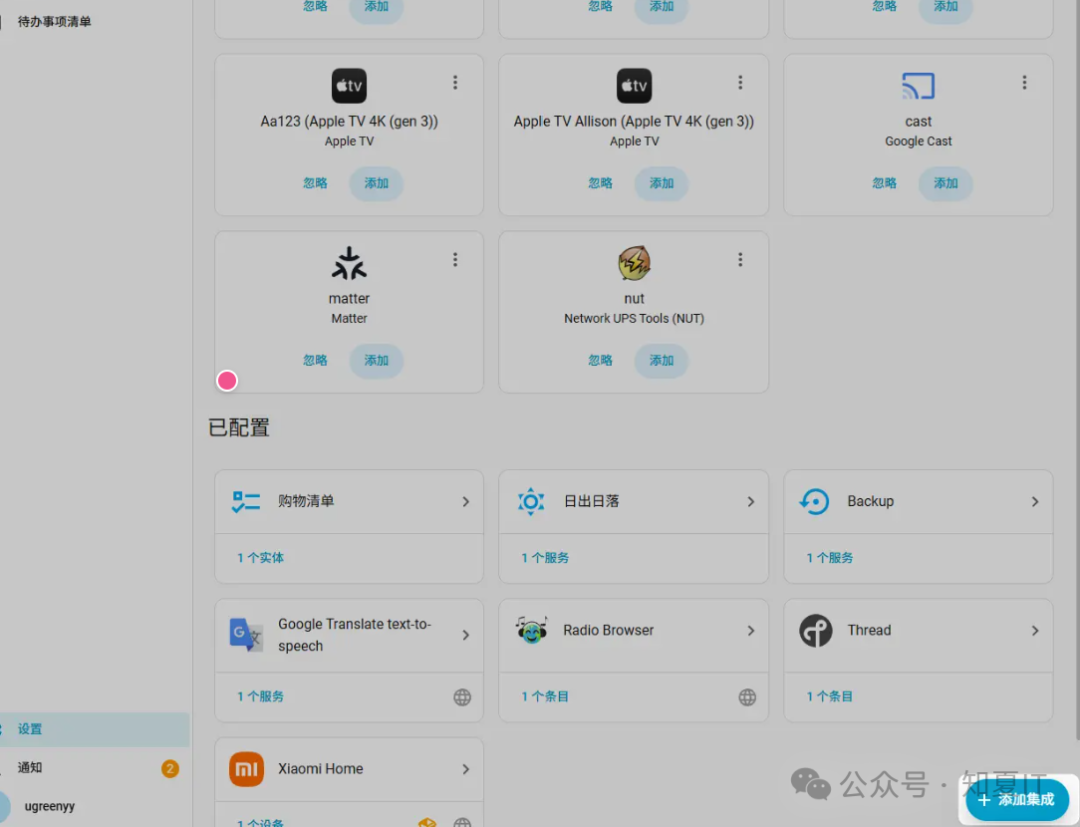
搜索并添加HACS
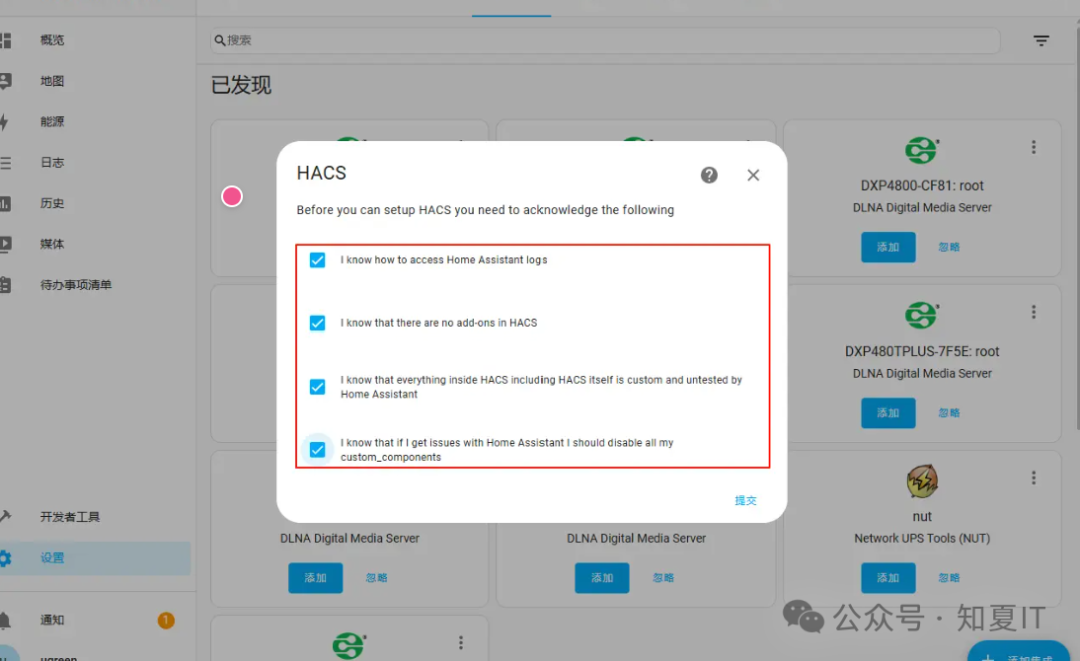
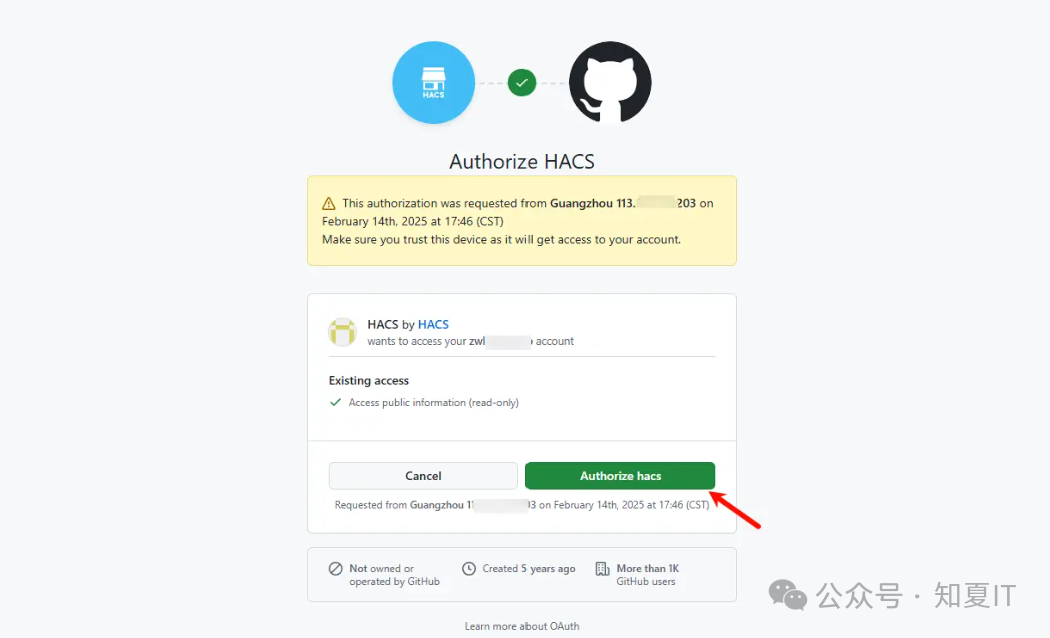
接下来点击链接注册&登录 github,并进行授权绑定,后续就可以用HACS直接拉取github上的应用
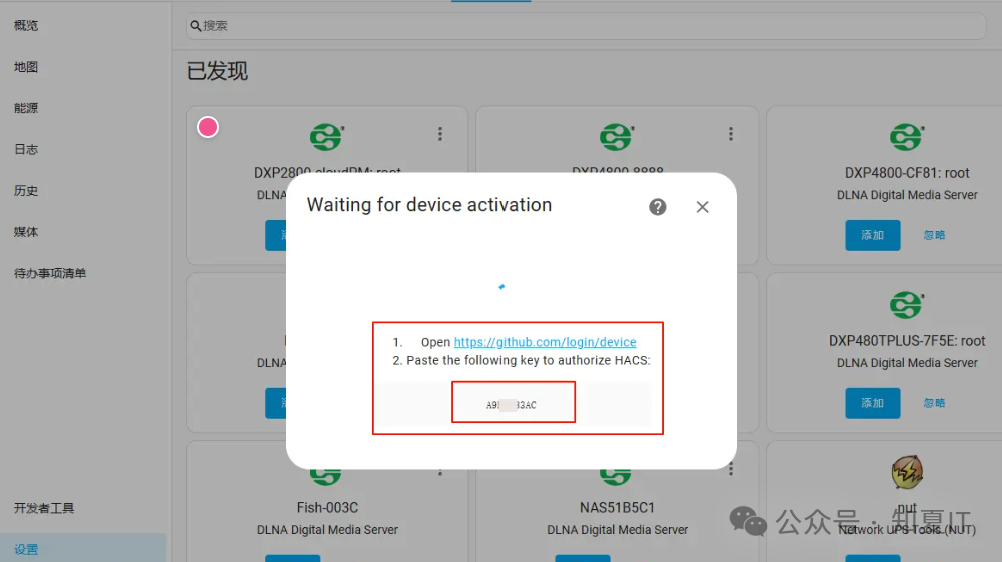
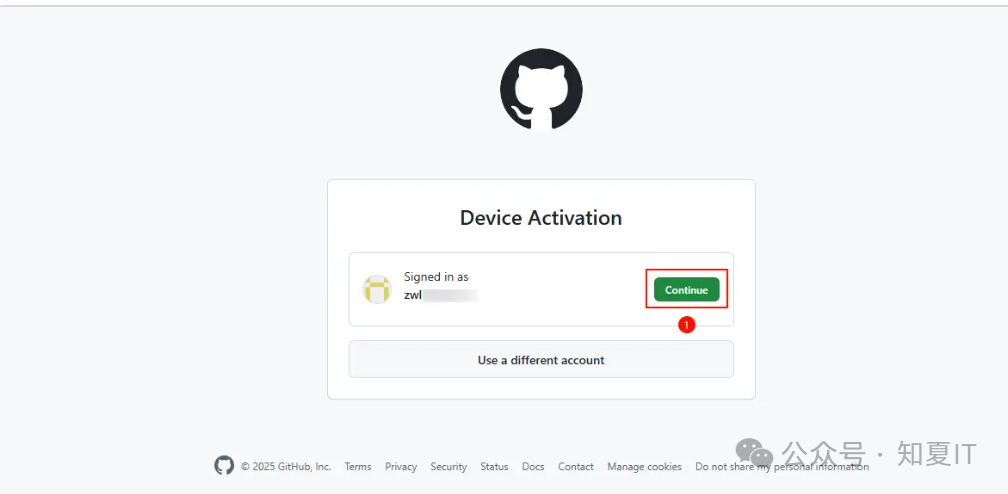
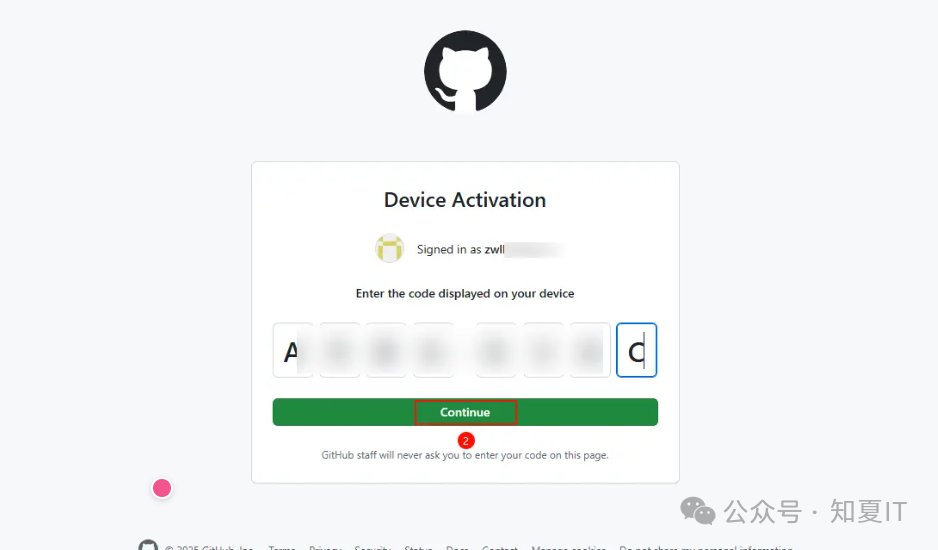
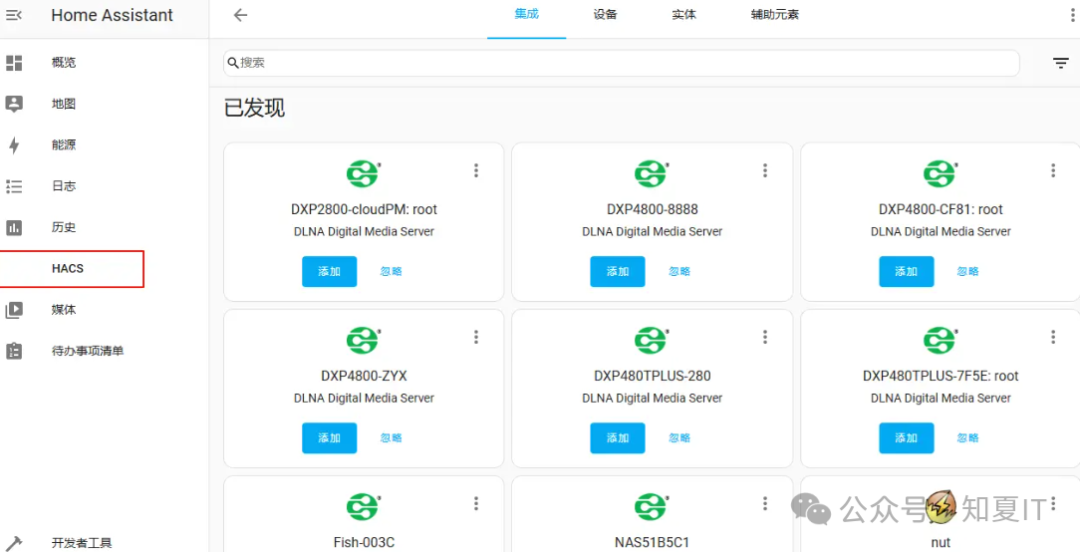
授权完成后,左侧菜单就可以看到HACS了
集成安装
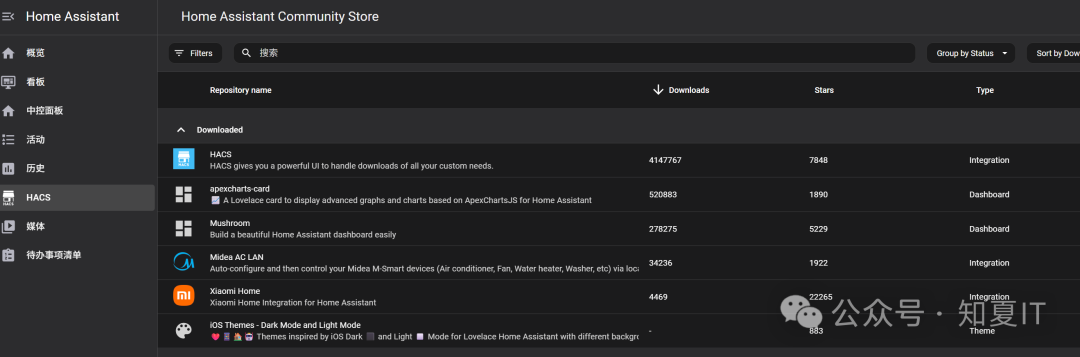
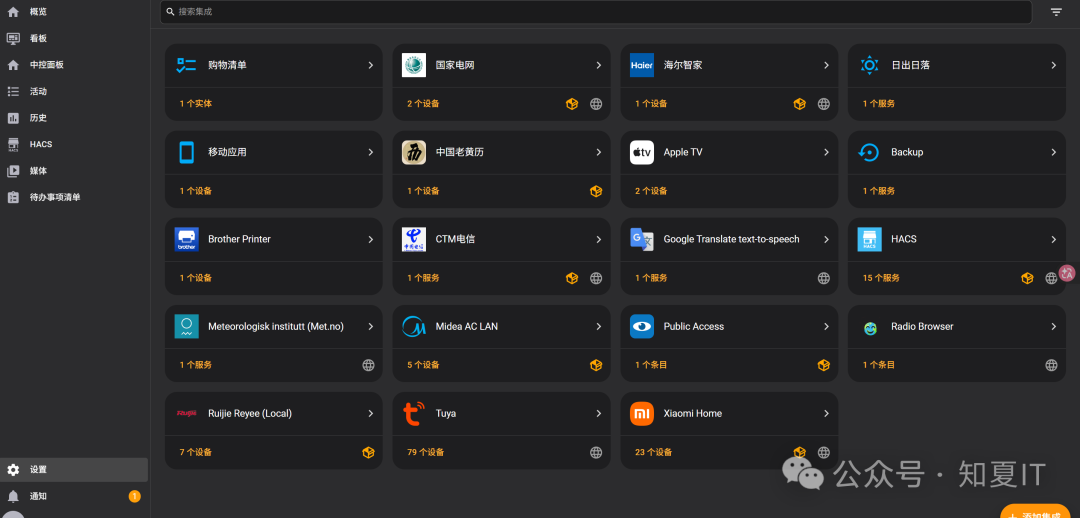
接下来安装下用得到的东西,先看下我安装的主题和集成,大家依照实际需求去安装(PS:没有在HACS里面的下载完成载入后不会在HACS里面显示)
主题设定
我安装了IOS风格主题,大家可以HACS里面下载自己喜欢的主题

全局设定方式如下->设置->工具->动作
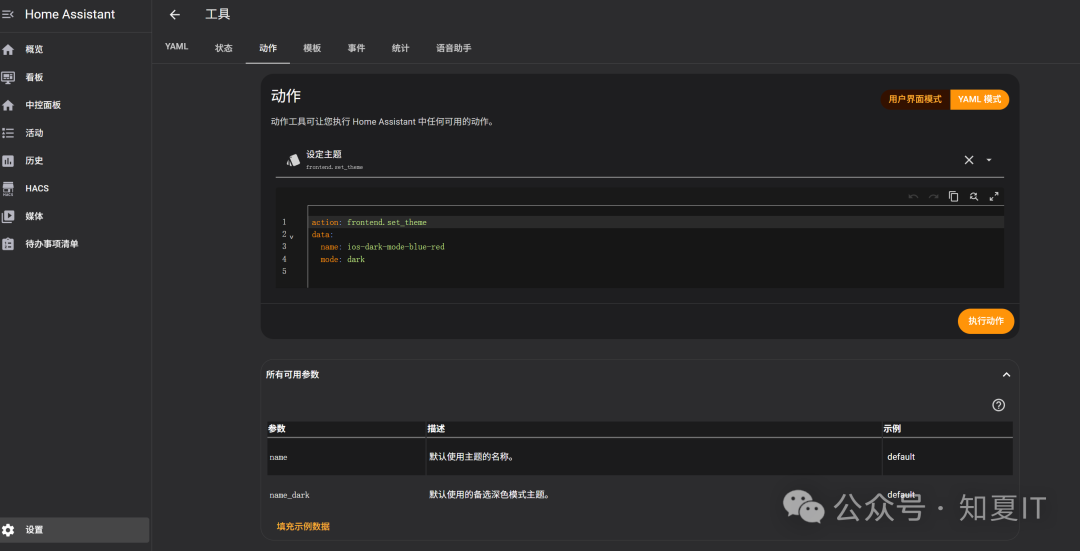
action: frontend.set_theme
data:
  name: ios-dark-mode-blue-red
  mode: dark
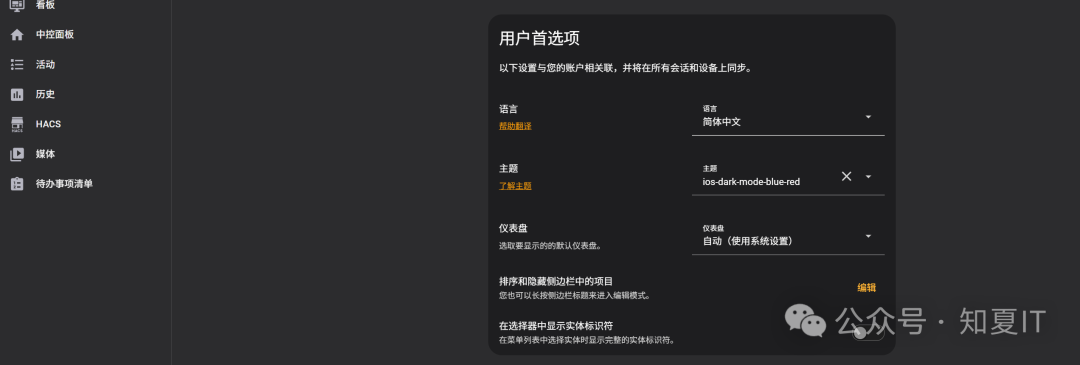
个人信息中设定的只会对个人生效,无法全局默认
抓取电网及电信数据
首先安装电网集成,目前网上大致有下面三个
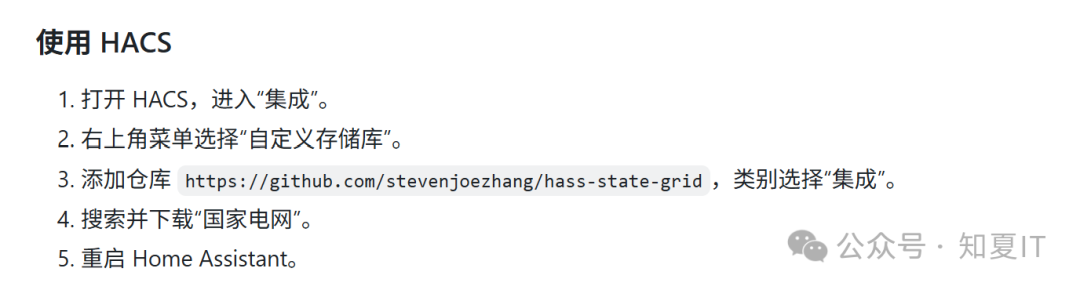
https://github.com/stevenjoezhang/hass-state-grid
https://github.com/ARC-MX/sgcc_electricity_new
https://github.com/renxiaoyaoo/ha-95598
对比如下,本次选用第一个,其他两个有兴趣大家可以自行尝试

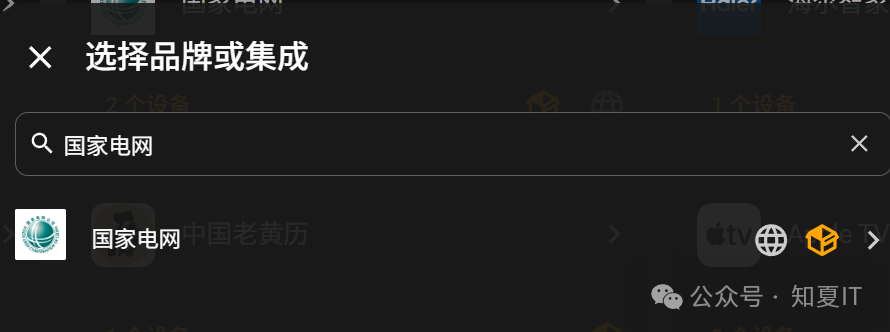
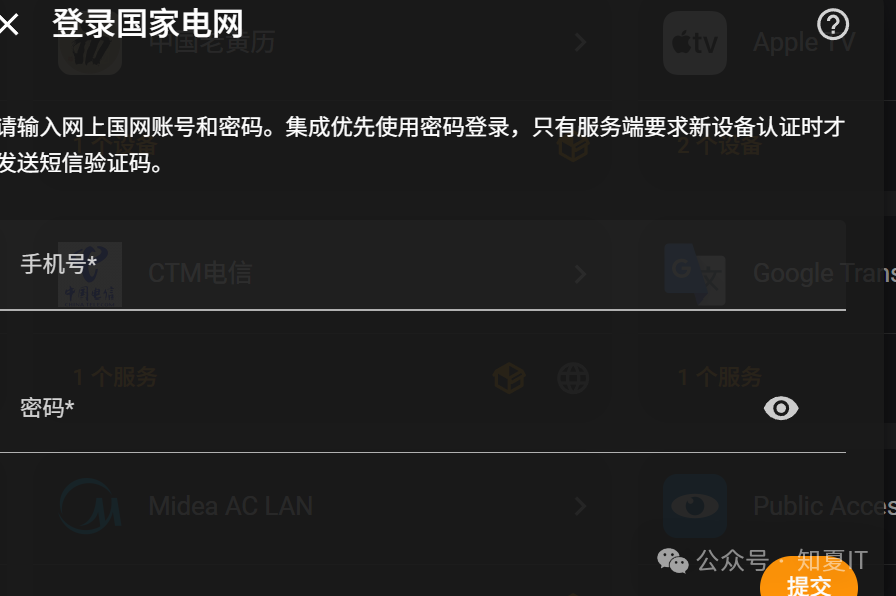
设置->设备与服务->添加集成->搜索国家电网
输入账号和密码提交
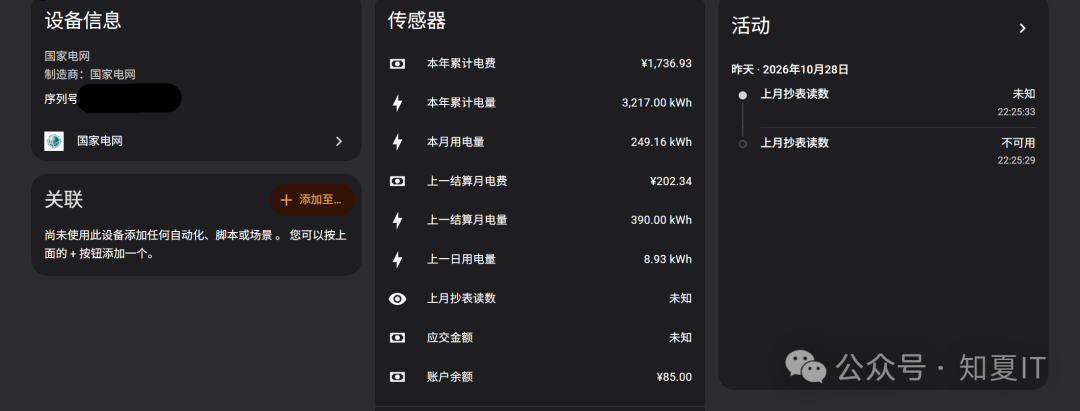
接着就可看到电网的数据了
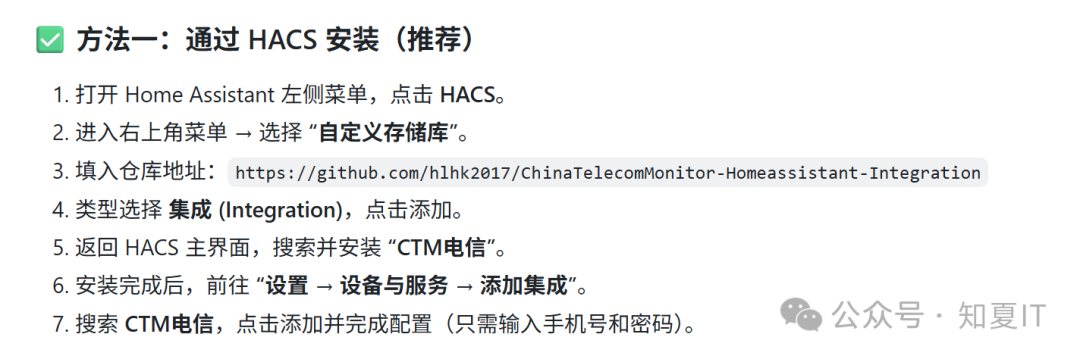
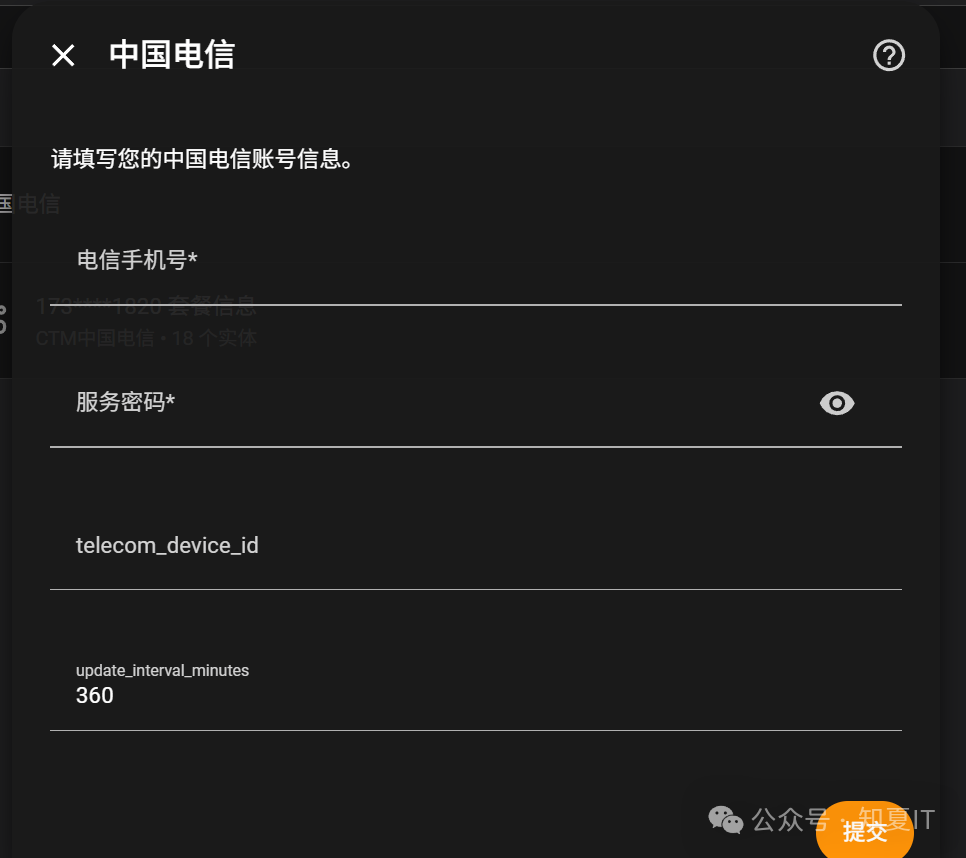
接下来安装电信集成,目前测试只有这个成功率比较高
https://github.com/hlhk2017/ChinaTelecomMonitor-Homeassistant-Integration
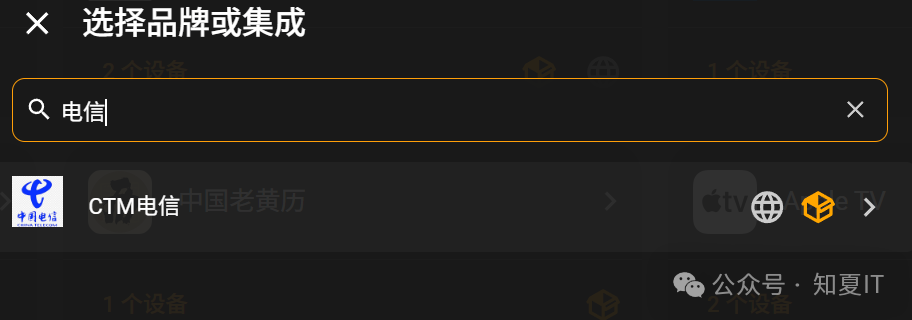
输入手机号、服务密码,还需要信任设备ID
手机打开如下网址进行登录后就可获取到信任设备ID,复制到刚刚的栏位点击提交即可
https://telecom.nufe.ccwu.cc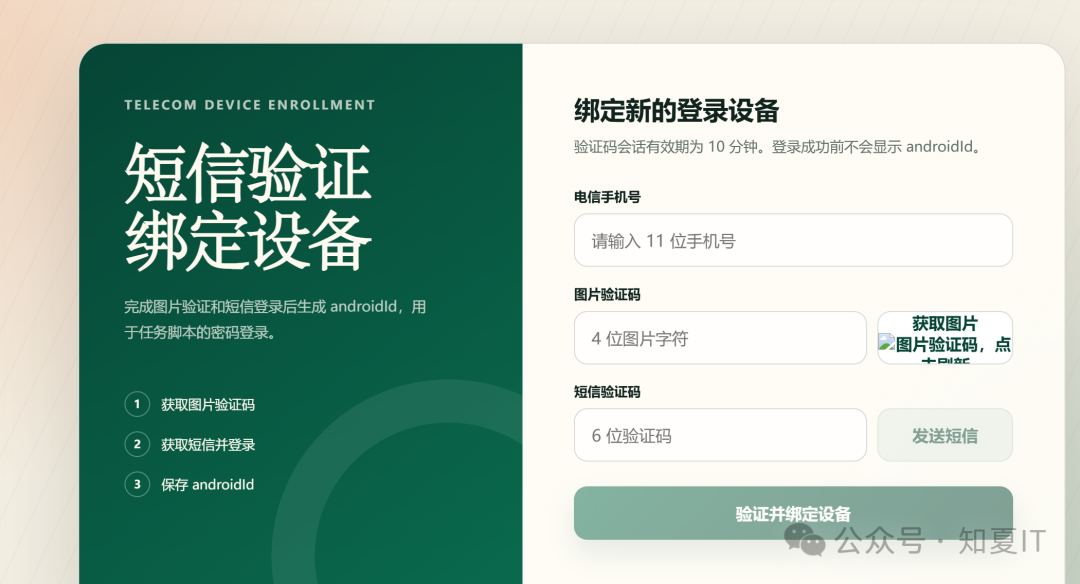
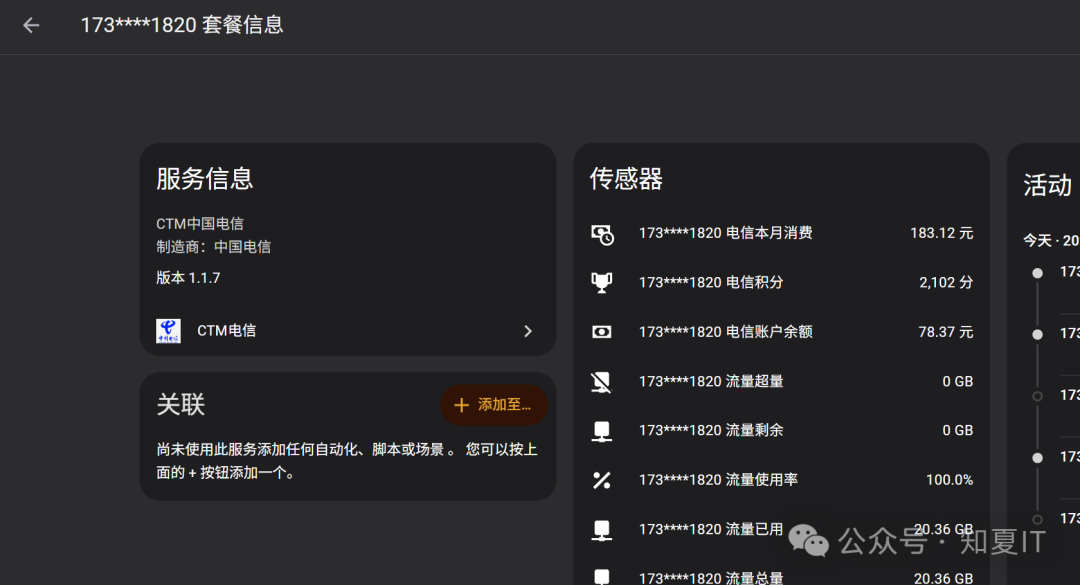
不过这里有个地方抓取的数据有问题,就是流量总量,博主的是40G,这边显示流量总量的和流量已用的是一致,导致流量使用率显示也有问题,没关系,后面我们自行编写yaml来手动定义即可
最后同上方式安装下Public Access集成,地址如下,后续配置免密码访问用得到
https://github.com/dllfpp/ha-public-access看板设定
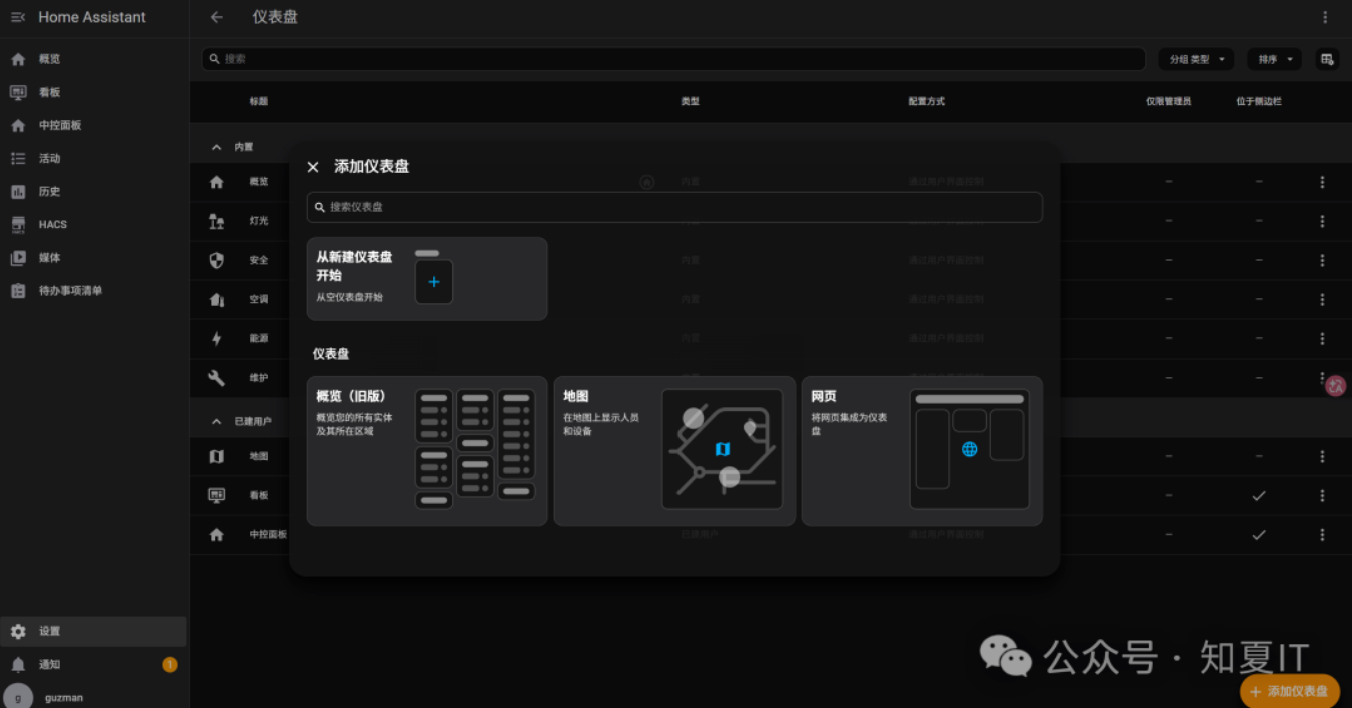
设置->仪表盘->新建仪表盘
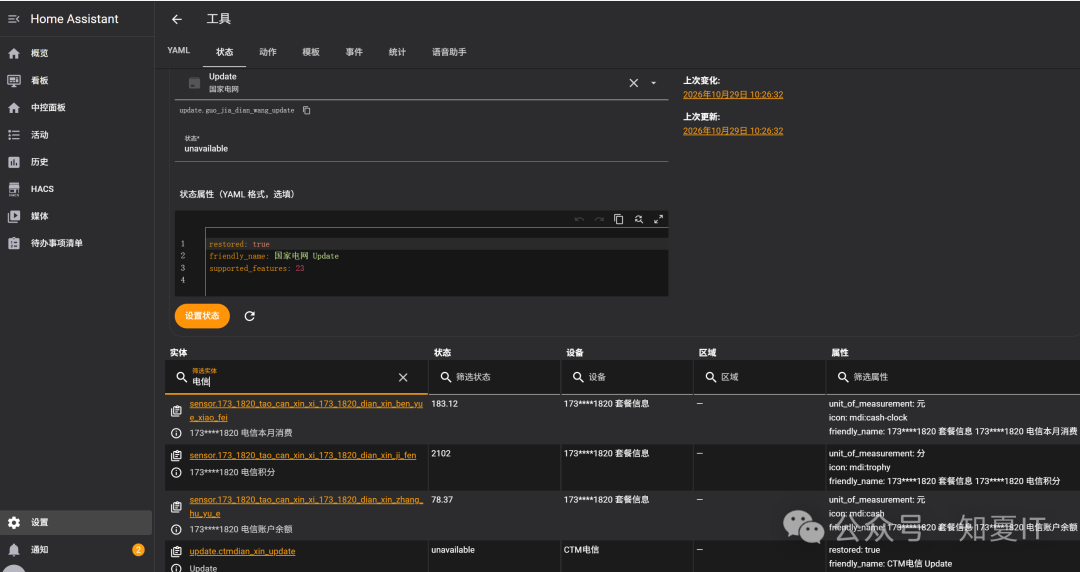
设置->工具->状态->搜索我们想要的实体名称, 后续用yaml抓取用得到
设定电网数据看板->看板->编辑->新建部件->按卡片->手动yaml
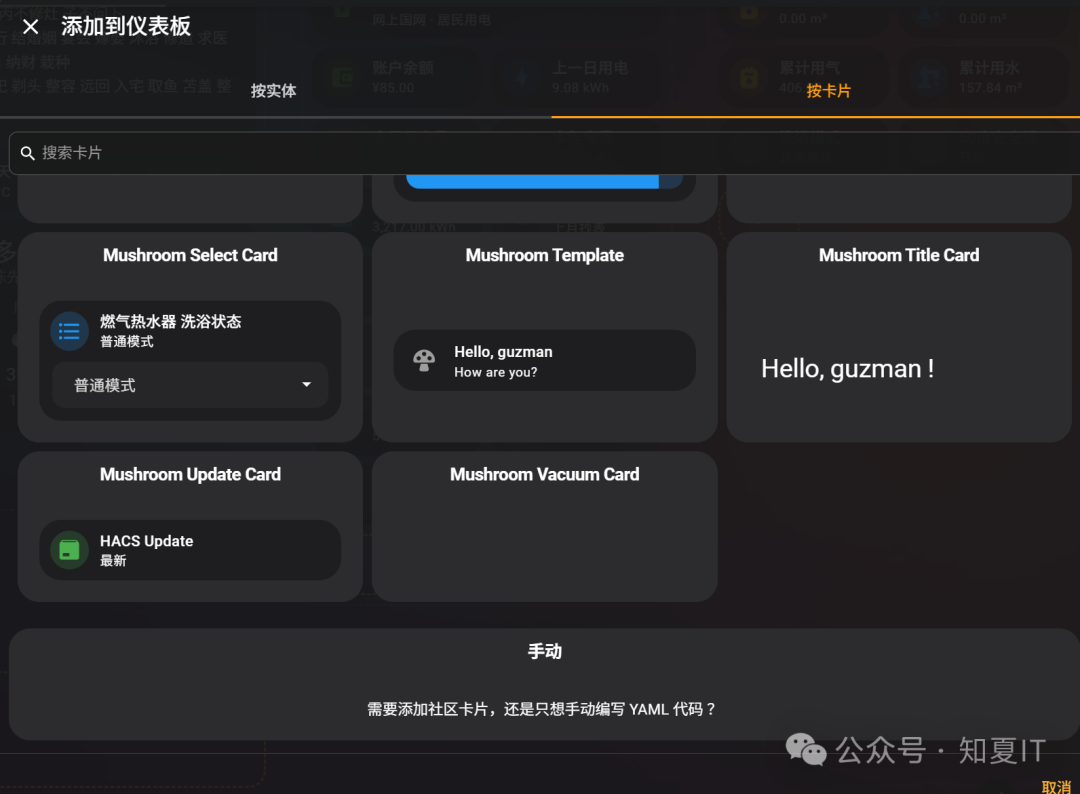
如下的sensor信息替换成自己的
type: vertical-stack
cards:
  - type: custom:mushroom-template-card
    primary: 📊 陈先生的小屋电表总览
    secondary: 两个电表汇总统计
    icon: mdi:chart-box
    icon_color: blue
    tap_action:
      action: none
  - type: horizontal-stack
    cards:
      - type: custom:mushroom-template-card
        primary: >-
          {{
          (states('sensor.***')
          | float(0) +
          states('sensor.***')
          | float(0)) | round(2) }} 元
        secondary: 合计余额
        icon: mdi:wallet
        icon_color: green
      - type: custom:mushroom-template-card
        primary: >-
          {{
          (states('sensor.***')
          | float(0) +
          states('sensor.***')
          | float(0)) | round(2) }} kWh
        secondary: 昨日总用电
        icon: mdi:lightning-bolt
        icon_color: blue
  - type: horizontal-stack
    cards:
      - type: custom:mushroom-template-card
        primary: >-
          {{
          (states('sensor.***')
          | float(0) +
          states('sensor.***')
          | float(0)) | round(2) }} kWh
        secondary: 本月总用电
        icon: mdi:calendar-month
        icon_color: amber
      - type: custom:mushroom-template-card
        primary: >-
          {{
          (states('sensor.***')
          | float(0) +
          states('sensor.***')
          | float(0)) | round(0) }} 元
        secondary: 本年总电费
        icon: mdi:currency-cny
        icon_color: pink
  - type: horizontal-stack
    cards:
      - type: custom:mushroom-template-card
        primary: >-
          {{
          (states('sensor.***')
          | float(0) +
          states('sensor.***')
          | float(0)) | round(2) }} kWh
        secondary: 本年总用电量
        icon: mdi:calendar
        icon_color: cyan
      - type: custom:mushroom-template-card
        primary: ''
        secondary: ''
        icon: ''
        icon_color: ''
  - type: custom:mushroom-template-card
    primary: 🏠 家用电表
    secondary: 网上国网 · 居民用电
    icon: mdi:home-lightning-bolt
    icon_color: green
    tap_action:
      action: more-info
      entity_id: >-
        sensor.***
  - type: horizontal-stack
    cards:
      - type: custom:mushroom-entity-card
        entity: >-
          sensor.***
        name: 账户余额
        icon: mdi:wallet
        icon_color: green
      - type: custom:mushroom-entity-card
        entity: >-
          sensor.***
        name: 上一日用电
        icon: mdi:lightning-bolt
        icon_color: blue
  - type: horizontal-stack
    cards:
      - type: custom:mushroom-entity-card
        entity: >-
          sensor.***
        name: 本月用电量
        icon: mdi:calendar-month
        icon_color: amber
      - type: custom:mushroom-entity-card
        entity: >-
          sensor.***
        name: 本年电费
        icon: mdi:currency-cny
        icon_color: pink
  - type: horizontal-stack
    cards:
      - type: custom:mushroom-entity-card
        entity: >-
          sensor.***
        name: 本年用电量
        icon: mdi:calendar
        icon_color: cyan
      - type: custom:mushroom-template-card
        primary: 未知
        secondary: 上月抄表
        icon: mdi:eye
        icon_color: purple
  - type: custom:mushroom-template-card
    primary: 🔌 充电桩
    secondary: 网上国网 · 充电桩用电
    icon: mdi:ev-station
    icon_color: green
    tap_action:
      action: more-info
      entity_id: >-
        sensor.***
  - type: horizontal-stack
    cards:
      - type: custom:mushroom-entity-card
        entity: >-
          sensor.***
        name: 账户余额
        icon: mdi:wallet
        icon_color: green
      - type: custom:mushroom-entity-card
        entity: >-
          sensor.***
        name: 上一日用电
        icon: mdi:lightning-bolt
        icon_color: blue
  - type: horizontal-stack
    cards:
      - type: custom:mushroom-entity-card
        entity: >-
          sensor.***
        name: 本月用电量
        icon: mdi:calendar-month
        icon_color: amber
      - type: custom:mushroom-entity-card
        entity: >-
          sensor.***
        name: 本年电费
        icon: mdi:currency-cny
        icon_color: pink
  - type: horizontal-stack
    cards:
      - type: custom:mushroom-entity-card
        entity: >-
          sensor.***
        name: 本年用电量
        icon: mdi:calendar
        icon_color: cyan
      - type: custom:mushroom-template-card
        primary: 未知
        secondary: 上月抄表
        icon: mdi:eye
        icon_color: purple
设定电信数据看板->看板->编辑->新建部件->按卡片->手动yaml
如下sensor需要替换成自己的,另外流量总量我这边手动定义为40G
type: vertical-stack
cards:
 - type: custom:mushroom-template-card
   primary: 📱 运营商套餐总览
   secondary: 173****1820 号码统计
   icon: mdi:sim-card
   icon_color: teal
   tap_action:
   action: none
 - type: horizontal-stack
   cards:
     - type: custom:mushroom-entity-card
       entity: sensor.***
       name: 账户余额
       icon: mdi:wallet
       icon_color: green
     - type: custom:mushroom-entity-card
       entity: sensor.***
       name: 本月消费
       con: mdi:cash-clock
       icon_color: orange
  - type: horizontal-stack
    cards:
      - type: custom:mushroom-entity-card
        entity: sensor.***
        name: 可用积分
        icon: mdi:trophy
        icon_color: blue
      - type: custom:mushroom-template-card
        primary: >-
          {{
          (states('sensor.***') | float(0) / 40) * 100 | round(1) }} %
        secondary: 流量使用率
        icon: mdi:percent
        icon_color: red
        tap_action:
        action: none
  - type: horizontal-stack
    cards:
      - type: custom:mushroom-entity-card
        entity: sensor.***
        name: 流量已用
        icon: mdi:download-network
        icon_color: amber
      - type: custom:mushroom-template-card
        primary: 40 GB
        secondary: 流量总量
        icon: mdi:database
        icon_color: cyan
        tap_action:
        action: none
  - type: horizontal-stack
    cards:
      - type: custom:mushroom-entity-card
        entity: sensor.***
        name: 通话使用率
        icon: mdi:percent
        icon_color: blue
      - type: custom:mushroom-entity-card
        entity: sensor.***
        name: 通话已用
        icon: mdi:phone-outgoing
        icon_color: green
  - type: horizontal-stack
    cards:
      - type: custom:mushroom-entity-card
        entity: sensor.***
        name: 通话总量
        icon: mdi:phone
        icon_color: teal
其他的数据你想放上来,一样可以,还可以选用已经集成的卡片信息
免密开放
要免密码直接打开看板,就需要用到上面的Public Access了
设置->设备与服务->添加集成->搜索Public Access->打开->选定看板->设定路径名称就可以
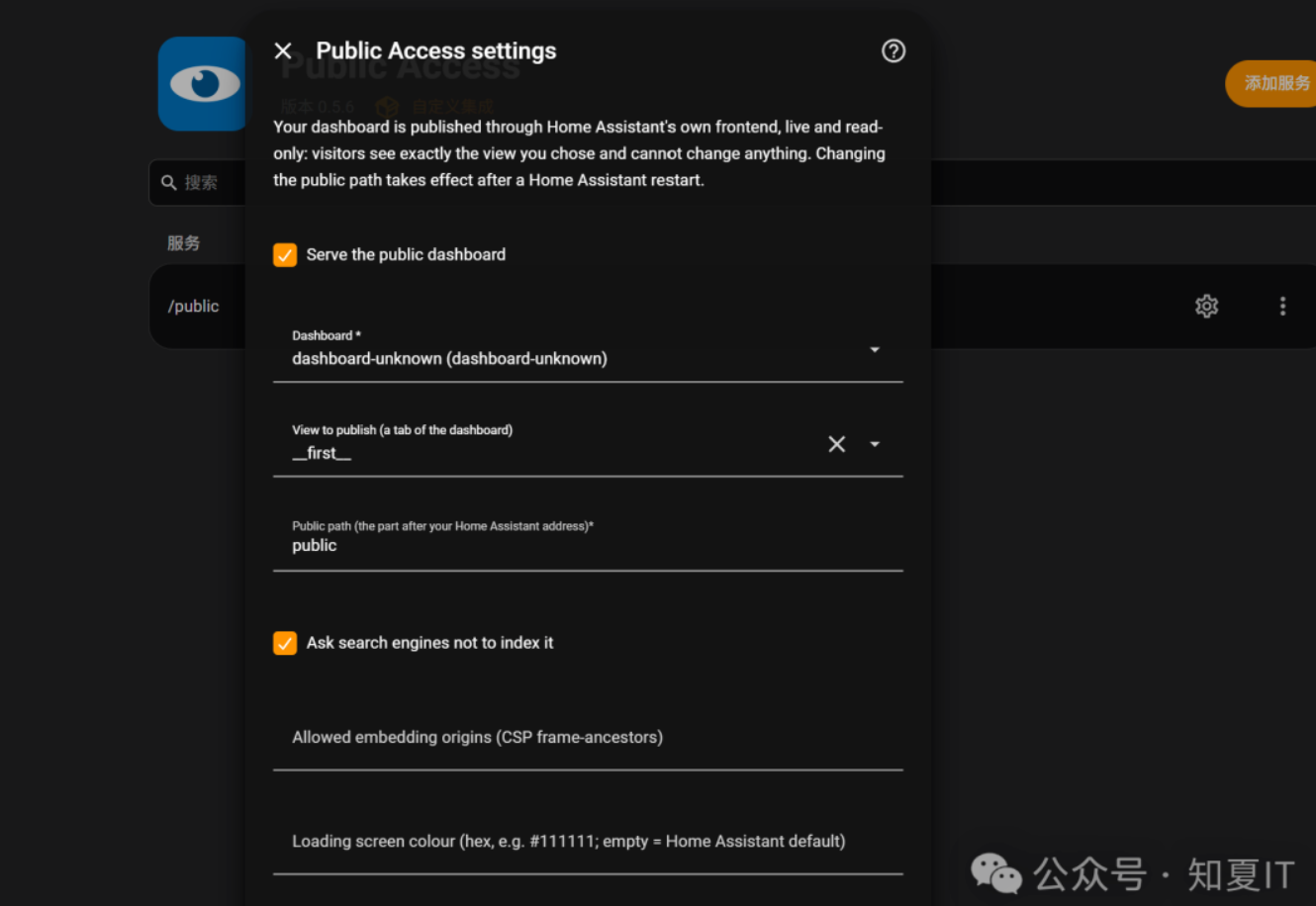
现在就可以用http://ip:8123/public直接打开看板了
为了方便我加了域名绑定和反向代理设定 ,公网使用下面链接就可以直接打开
https://ha.zxit.top/public
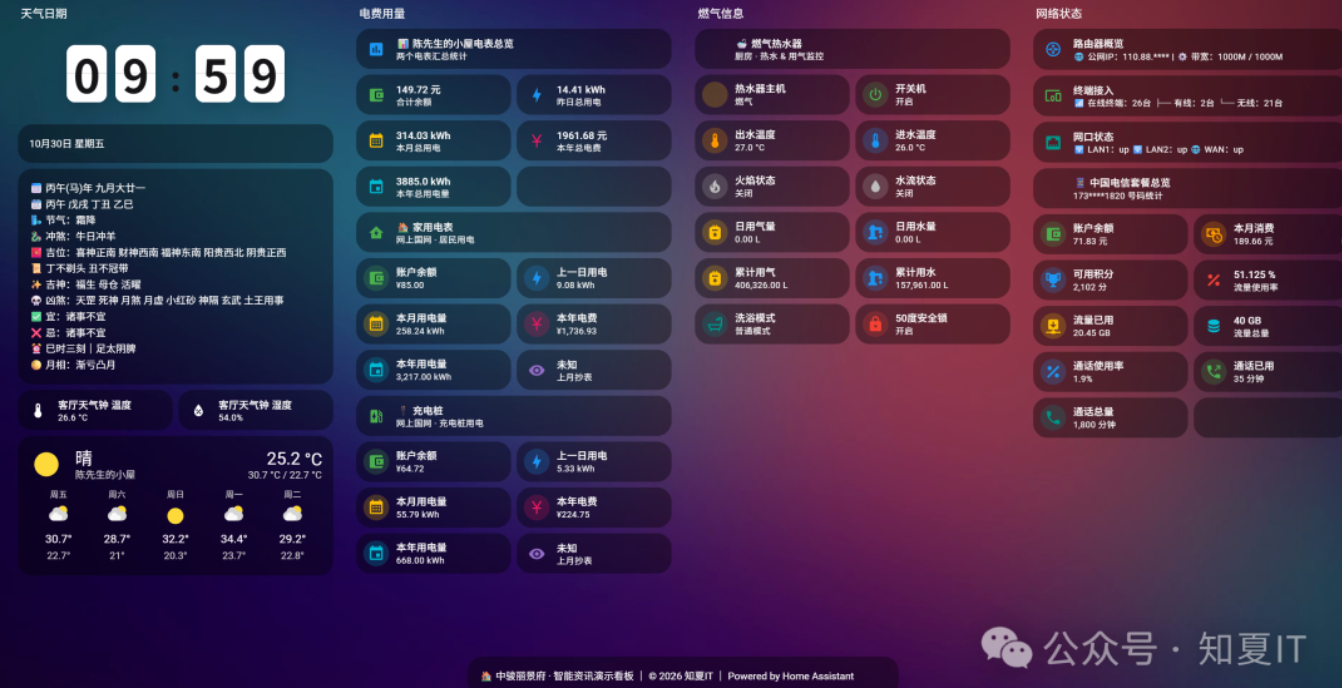
目前只添加天气日期、家里温湿度、电网数据、燃气热水器、路由器、手机套餐,后面有时间再慢慢完善~
写在最后
公开免密码看板需要注意,哪些可以放哪些不能放,信息安全和设备控制权限要自行甄别及调整设定,避免资料外泄造成损失



评论区